NGINX Config Manager
NGINX Config Manager
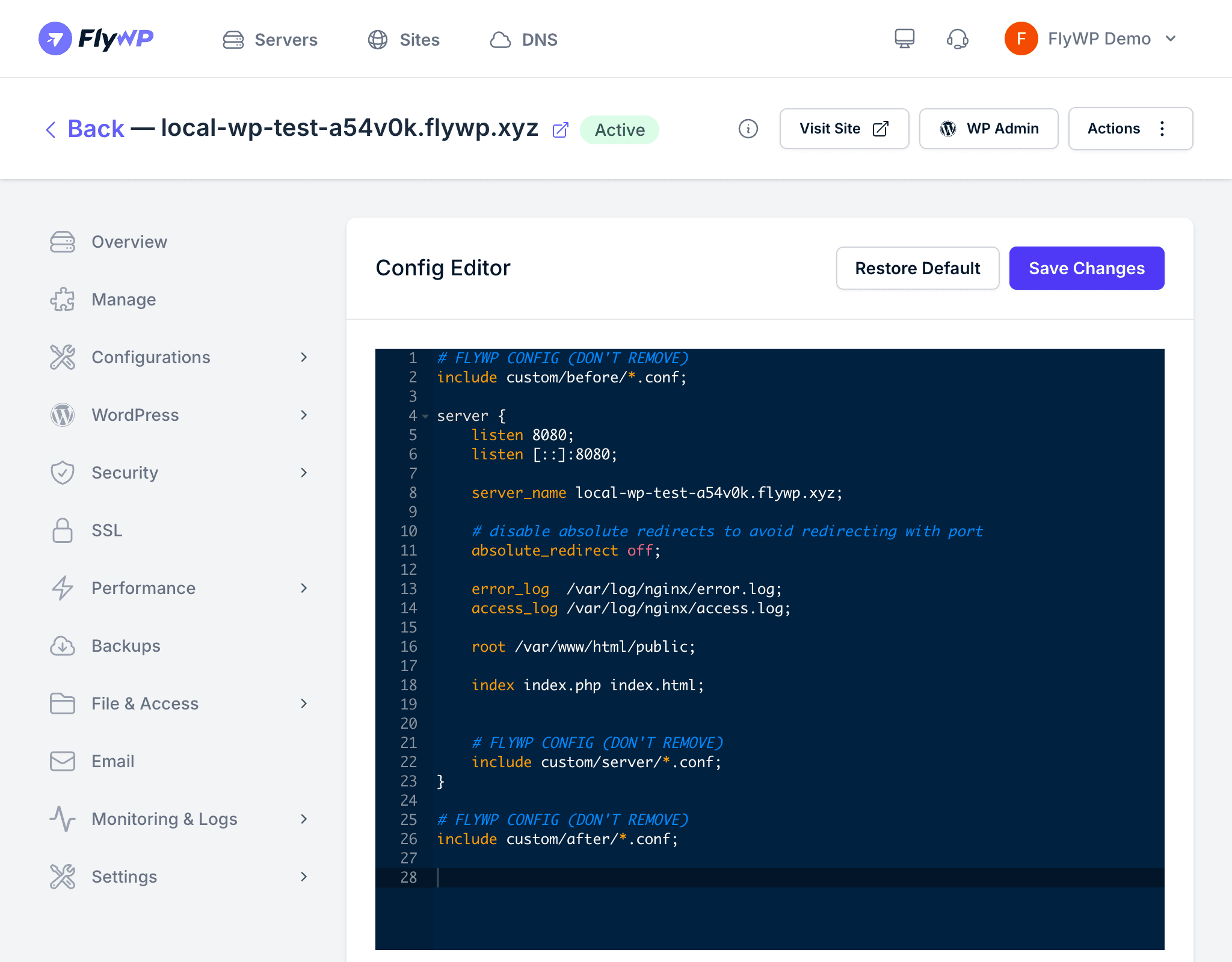
If you’ve ever needed to add custom security headers, tweak upload limits, or fix a visitor IP detection issue — but didn’t want to SSH into your server — the NGINX Config Manager is what you’re looking for. It gives you a browser-based editor to read and modify your site’s NGINX (the web server software that handles incoming traffic and routes it to WordPress) configuration, restore defaults with a single click, and see exactly what went wrong if NGINX rejects a change.
Viewing the Current Configuration
Navigate to your site and click NGINX Config in the sidebar. FlyWP loads the active NGINX configuration file for your site, located at:
~/your-domain.com/config/nginx/default.confThe editor displays the full contents of this file with syntax highlighting so you can read and edit it directly in your browser.
Customizing the Configuration
- Make your changes directly in the editor.
- Click Save.
- FlyWP writes the updated configuration and reloads NGINX automatically.
If your configuration contains a syntax error, NGINX will reject it. FlyWP detects the failure and displays the error message so you can fix the problem before any bad configuration takes effect.
A broken NGINX configuration can take your site offline. Always copy your working configuration somewhere safe before making edits. Use the Restore Default option if you need to recover quickly.
Restoring the Default Configuration
If your custom configuration causes problems, click Restore Default to revert to FlyWP’s original NGINX template for your site. This replaces your customizations entirely and reloads NGINX with the safe baseline settings.
Cloudflare Proxy Detection
When your site sits behind Cloudflare’s proxy (Cloudflare acts as a middleman between visitors and your server, adding CDN caching and DDoS protection), NGINX needs to trust Cloudflare’s IP ranges to correctly identify real visitor IP addresses — otherwise every request appears to come from Cloudflare rather than your actual visitors.
FlyWP provides a Cloudflare proxy toggle in the NGINX Config Manager:
- Enabled — NGINX reads Cloudflare’s
CF-Connecting-IPheader to determine the real visitor IP. This is required for accurate logging, rate limiting, and IP-based security rules. - Disabled — NGINX uses the direct connection IP, which is correct when traffic does not pass through Cloudflare.
Error Handling
When FlyWP encounters a problem applying your configuration, it wraps the error in [ERROR]...[/ERROR] tags and displays it in the editor. The message typically includes the NGINX line number and a description of the syntax issue. Fix the reported problem and save again.
Common Customizations
Here are the most common reasons people open the NGINX Config Manager:
- Custom headers — add security headers (like
Content-Security-Policy) or CORS (Cross-Origin Resource Sharing) rules that control which domains can load your site’s assets - Proxy pass rules — route specific URL paths to other services running on your server
- Rate limiting — throttle (slow down or block) repeated requests to specific endpoints to protect against abuse
- Caching rules — adjust FastCGI cache behavior (FastCGI is the protocol NGINX uses to talk to PHP, your site’s scripting engine)
- File upload limits — increase
client_max_body_sizeto allow larger file uploads through WordPress - Redirect rules — though the dedicated Redirect Rules feature handles simple redirects more conveniently