MySQL from Docker Container
MySQL from Docker Container
When something goes wrong with your WordPress site — slow queries, broken plugins, corrupted data — you often need to look directly at the database to diagnose and fix it. This page shows you how to connect to your site’s MySQL (a relational database system that stores all your WordPress content, settings, and users) database from the command line, run queries, and perform exports and imports.
FlyWP runs MySQL as a server-level service shared across all sites, but each site gets its own isolated database and database user, so your sites stay completely independent from one another. You can access MySQL through several methods depending on your needs.
Finding Database Credentials
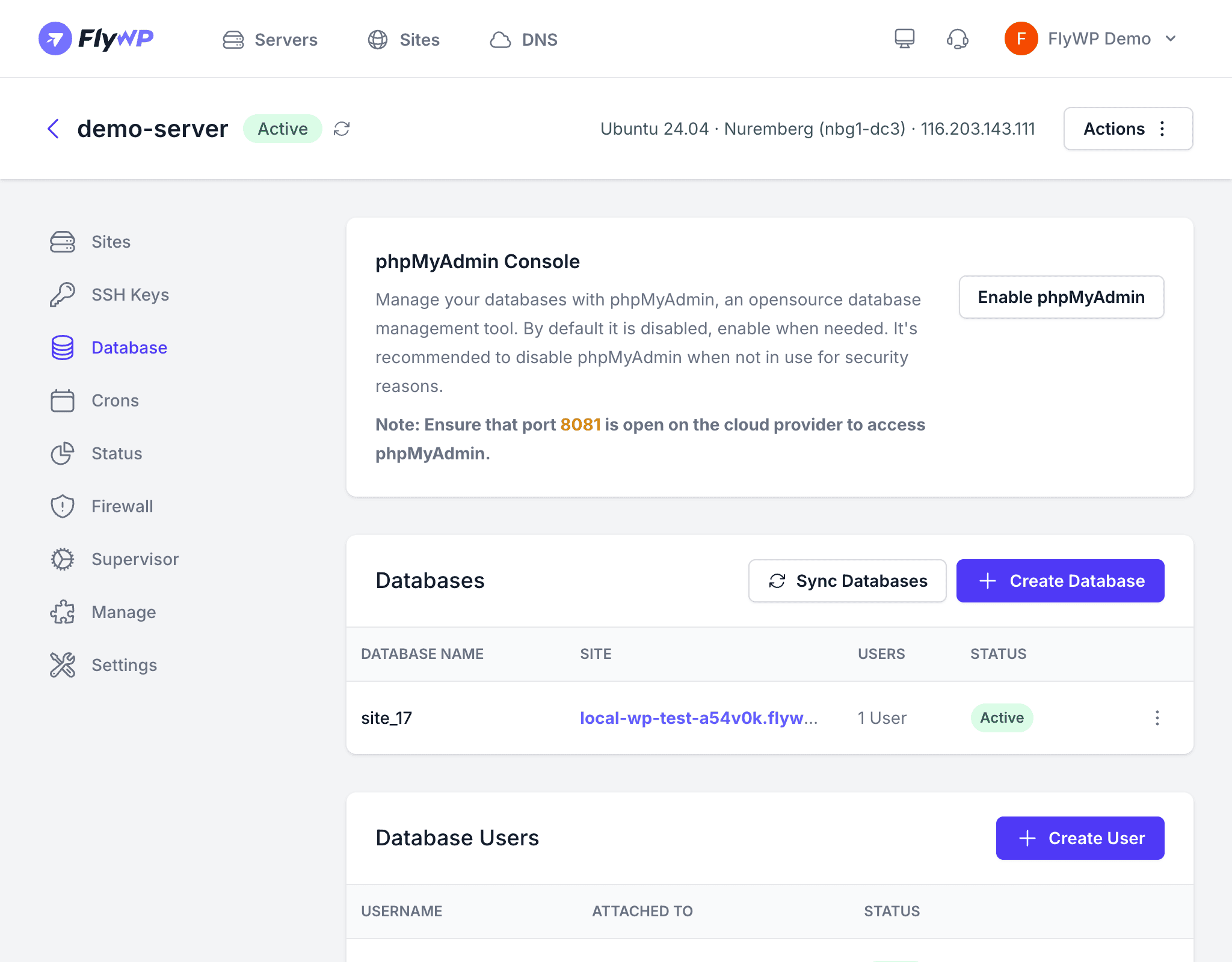
Before connecting, you need your site’s database credentials. Find them in the FlyWP dashboard:
- Navigate to your site’s detail page.
- Open the Database section to find the database name, username, and password.
Alternatively, you can read them directly from your site’s wp-config.php (the WordPress configuration file that stores database connection details) using Docker (the container platform FlyWP uses to isolate each site):
docker exec -it your-domain-com cat /var/www/html/wp-config.php | grep DB_Accessing MySQL
Method 1: From Within a Site Container
Drop into the site’s Docker container and use the mysql client (a command-line tool for sending queries to MySQL):
docker exec -it your-domain-com bashmysql -u your_db_user -p your_db_nameMySQL prompts you to enter the database password. Once connected, you get an interactive session where you can run any SQL statement.
Method 2: Direct MySQL Command
Run a single query without entering the container’s shell — useful for quick, scripted checks:
docker exec -it your-domain-com mysql -u your_db_user -pyour_password your_db_name -e "SHOW TABLES;"Method 3: phpMyAdmin
For a graphical, point-and-click interface, enable phpMyAdmin from the server’s Database tab in the FlyWP dashboard. FlyWP starts it on port 8081 and gives you a web-based SQL (Structured Query Language — the standard language for querying databases) editor without needing the command line at all.
Common Database Operations
Exporting a Database
Use WP-CLI (WordPress’s official command-line tool) to export your database to a .sql file:
docker exec -it your-domain-com wp db export /tmp/backup.sqlOr use mysqldump (MySQL’s built-in export utility) for a direct dump:
docker exec -it your-domain-com mysqldump -u your_db_user -pyour_password your_db_name > backup.sqlImporting a Database
docker exec -it your-domain-com wp db import /tmp/backup.sqlRunning Queries
docker exec -it your-domain-com wp db query "SELECT option_value FROM wp_options WHERE option_name='siteurl';"Running direct SQL queries can corrupt your WordPress database if used incorrectly. Always create a backup before executing UPDATE, DELETE, or ALTER statements.
Database Isolation
Each site on a FlyWP server has its own dedicated database, so there is no risk of one site reading or modifying another site’s data. Here is what that isolation looks like in practice:
- Its own database — sites cannot access each other’s data
- Its own database user — credentials are unique per site
- Access to the shared MySQL server running on the host