Caching
Caching
Slow pages cost you visitors. When a WordPress site has to query the database and run PHP on every single request, response times suffer — especially under traffic. FlyWP’s built-in caching eliminates that repeated work, so your pages load in milliseconds instead of seconds, and your server stays comfortable even during traffic spikes.
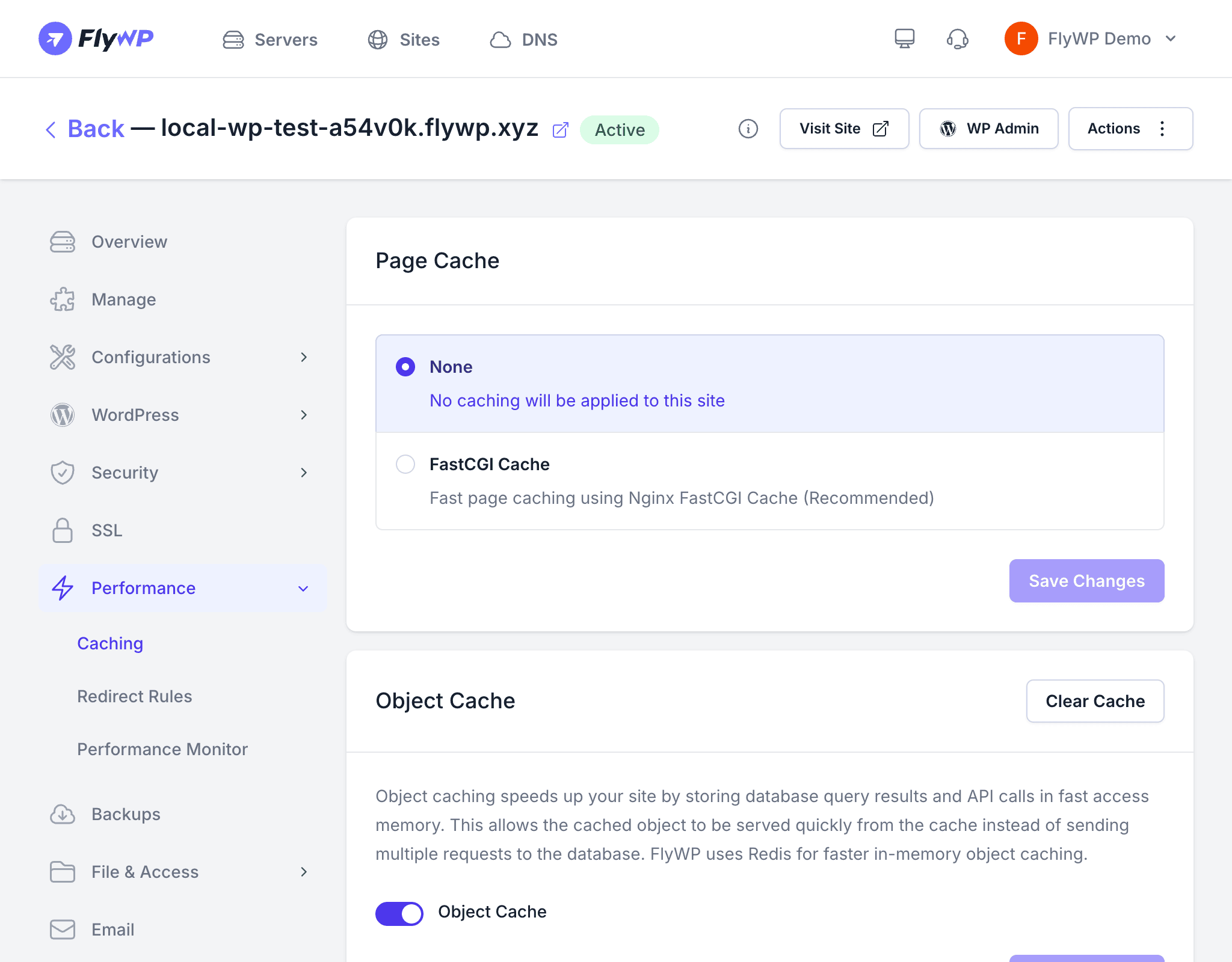
FlyWP gives you two complementary caching layers: Page Cache for serving fully rendered HTML pages without touching PHP, and Object Cache for keeping database query results in memory. Together, they address performance at different levels of your stack.
Page Cache
Page Cache stores the complete HTML output of a page so that repeat visitors receive the pre-built version directly — WordPress never runs, PHP never executes, and the database is never queried.
This makes the biggest visible difference for most sites: pages that previously took 500ms or more to generate can be served in under 10ms.
Available Options
| Option | Description |
|---|---|
| None | No page caching — every request is processed by PHP and WordPress |
| FastCGI Cache (recommended) | Uses Nginx’s built-in FastCGI cache (a caching layer built into the web server) to store and serve complete pages |
How FastCGI Cache Works
When a visitor requests a page for the first time, Nginx (the web server software FlyWP uses) passes the request to PHP, which generates the HTML. Nginx then stores that HTML in its cache. On subsequent requests for the same page, Nginx serves the cached copy directly — without invoking PHP or hitting the database at all.
This means:
- Faster response times — cached pages are served in single-digit milliseconds
- Lower server load — PHP and MySQL (the database) handle far fewer requests
- Better scalability — your server can handle significantly more concurrent visitors
Object Cache
Object Cache uses Redis (an in-memory data store — think of it as a super-fast scratch pad that lives in your server’s RAM) to cache the results of database queries, API calls, and other expensive operations that WordPress performs repeatedly.
Instead of asking MySQL the same question hundreds of times per minute, WordPress checks Redis first. If the answer is already cached in memory, it comes back instantly — no database round-trip required. This helps all types of sites, including those where full page caching is not practical, like membership sites or WooCommerce stores.
Enabling Object Cache
- Navigate to your site’s Caching tab.
- Find the Object Cache section.
- Toggle the switch to On.
FlyWP installs and configures the Redis connection for your WordPress site automatically.
Clearing the Cache
Over time, cached content can become stale — meaning visitors see an older version of your page after you have made changes. Click the Clear Cache button at the top of the Caching tab to purge all cached pages and objects at once. This is useful when you:
- Make significant content or design changes
- Update plugins or themes
- Troubleshoot unexpected behavior that might be caused by stale cached data
When to Use Each Cache Type
| Scenario | Recommended Cache |
|---|---|
| Mostly static content (blog, brochure site) | FastCGI Cache + Object Cache |
| WooCommerce or membership site | Object Cache only (page cache may conflict with dynamic cart/session data) |
| High-traffic site with many concurrent visitors | FastCGI Cache + Object Cache |
| Development or staging site | None or Object Cache only |