Creating a Site
Creating a Site
Whether you are launching a brand-new WordPress blog, a client project, or a self-hosted tool, FlyWP gets your site live without touching a command line. The creation wizard guides you through each decision — domain, web server, database, and WordPress details — so you end up with a fully configured, SSL-secured site in about two minutes.
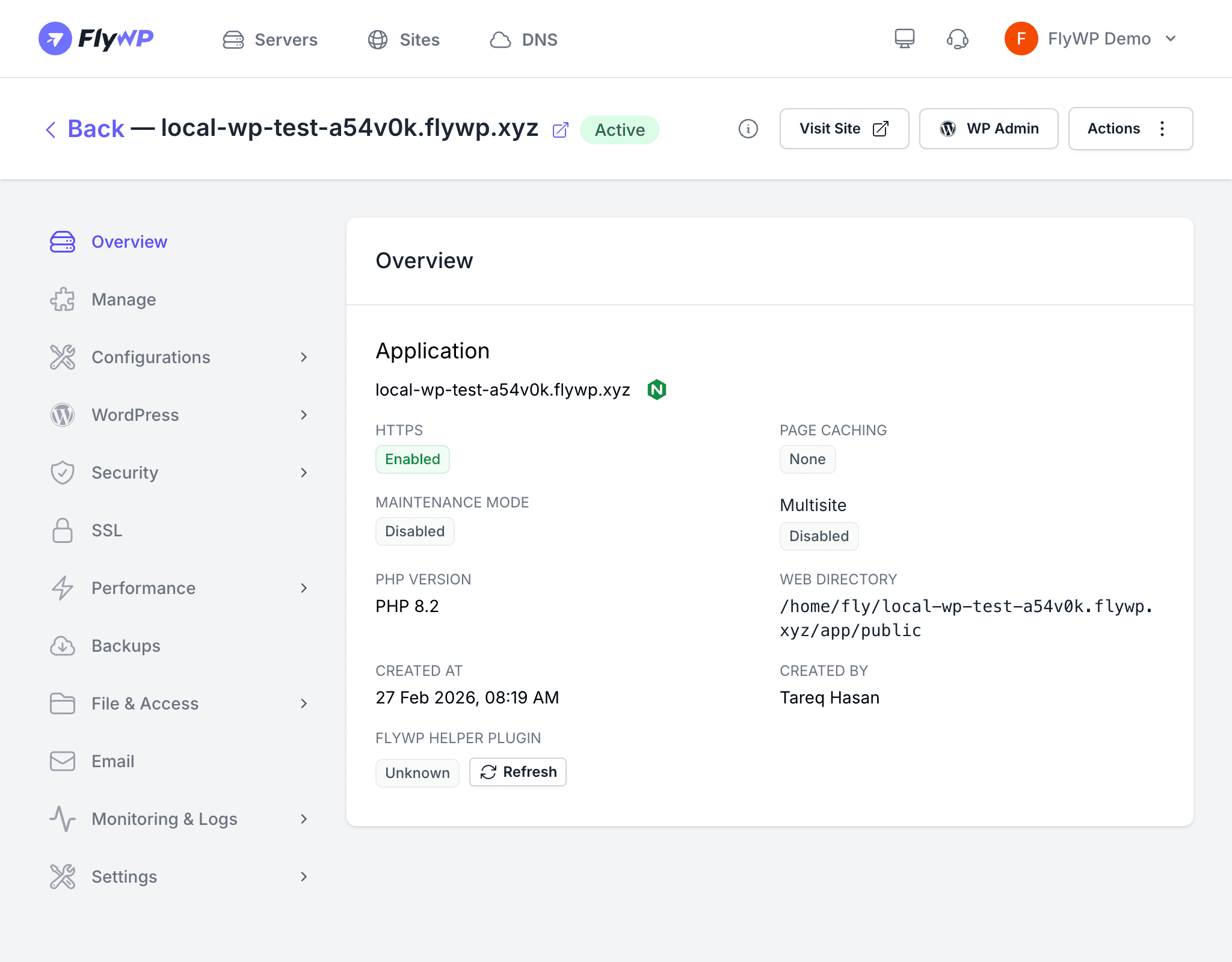
FlyWP supports several site types beyond traditional WordPress, including Bedrock (a modern WordPress project structure), one-click applications, and plain HTML. The guided wizard walks you through every option from domain configuration to database setup to Git (version control) deployment.
How to Start
- Navigate to the server where you want to host the site.
- Open the Sites tab in the server detail page.
- Click Create New Site in the top-right corner.
Step 1 — Select Site Type
Choose the type of site you want to create:
| Type | Description |
|---|---|
| WordPress | A standard WordPress installation — the most common choice |
| Bedrock | A Bedrock WordPress project with a modern folder structure and Composer-based (PHP package manager) dependency management |
| One-Click Apps | Pre-packaged applications you can deploy instantly |
| HTML | A static HTML (plain web page files with no server-side processing) site |
One-Click Apps
FlyWP offers the following one-click applications:
- n8n — workflow automation
- Nextcloud — self-hosted file storage and collaboration
- Statamic — a flat-file CMS (content management system) built on Laravel
- Open WebUI — a self-hosted AI chat interface
- Mautic — open-source marketing automation
- Vaultwarden — a lightweight Bitwarden-compatible password manager
- WireGuard — a fast, modern VPN (Virtual Private Network)
- Umami — privacy-focused website analytics
- phpMyAdmin — web-based MySQL (database) management
- Laravel — a fresh Laravel PHP application
- Next.js — a React-based framework for production web apps
Step 2 — Set Your Domain
Your domain is the address visitors type to reach your site. Configure it here:
- Primary domain — the main domain visitors will use (e.g.,
example.com) - Alias domains — additional domains that point to the same site
- Test domain — optionally use a free
*.flywp.xyzsubdomain while you are building the site, then switch to your real domain later
Step 3 — Choose Your Web Server Stack
The web server is the software that receives visitors’ requests and delivers your site’s pages. FlyWP gives you two options:
- Nginx (pronounced “engine-x”) — the default and most widely used option, known for high performance and low memory usage
- OpenLiteSpeed — an open-source web server with built-in caching and a web-based admin panel
Step 4 — Configure DNS
DNS (Domain Name System) is the system that points your domain name to your server’s IP address. If you use Cloudflare for DNS, FlyWP can optionally integrate with your Cloudflare account to create or update DNS records automatically. This saves you from manually adding A or CNAME (alias) records in Cloudflare’s dashboard.
If you do not use Cloudflare, point your domain’s DNS records to your server’s IP address through your domain registrar or DNS provider.
Step 5 — WordPress Install Details
For WordPress and Bedrock sites, fill in the following details that FlyWP uses to set up your installation:
- Site title — the name of your WordPress site
- Admin username — the login name for the WordPress admin account
- Admin password — a strong password for the admin account
- Admin email — the email address tied to the admin account
- WordPress version — select a specific version or use the latest stable release
- Multisite — optionally enable WordPress Multisite (a network of multiple sites sharing a single WordPress installation)
Enabling Multisite changes your WordPress installation structure and is difficult to reverse. Only enable it if you specifically need a multisite network.
Step 6 — Optional: External Database
By default, FlyWP creates a database (where all your site’s content is stored) on the same server. If you prefer, you can connect an external database by providing the host, port, database name, username, and password. This is useful when you run a managed database service like Amazon RDS or DigitalOcean Managed Databases, which handle backups and scaling separately from your web server.
Step 7 — Optional: Git Deployment
Connect a Git repository (a version-controlled code store) during site creation to enable push-to-deploy from the start. You can link a repository from GitHub, GitLab, or Bitbucket, choose a branch, and configure deployment scripts. See Git Deployment for more details.
Step 8 — Review and Create
The final step shows a summary of all your choices. Review everything, then click Create Site. FlyWP will:
- Provision the site container on your server
- Install and configure the web server stack
- Set up the database
- Install WordPress (or your chosen application)
- Provision an SSL certificate (the encryption layer that enables HTTPS) via Let’s Encrypt
Your site will enter a Creating state while this process runs. It typically completes within one to two minutes.