File Manager
File Manager
When you need to tweak a config file, upload a custom script, or check why an image is missing, opening an FTP client (a program that lets you transfer files between your computer and a server) can feel like overkill. The FlyWP File Manager puts a full file browser directly inside your dashboard so you can get in, make the change, and get out — no extra software required. For teams or developers who prefer external tools, FlyWP also lets you create dedicated SFTP accounts (SSH File Transfer Protocol — a secure, encrypted way to transfer files, similar to FTP but more secure).
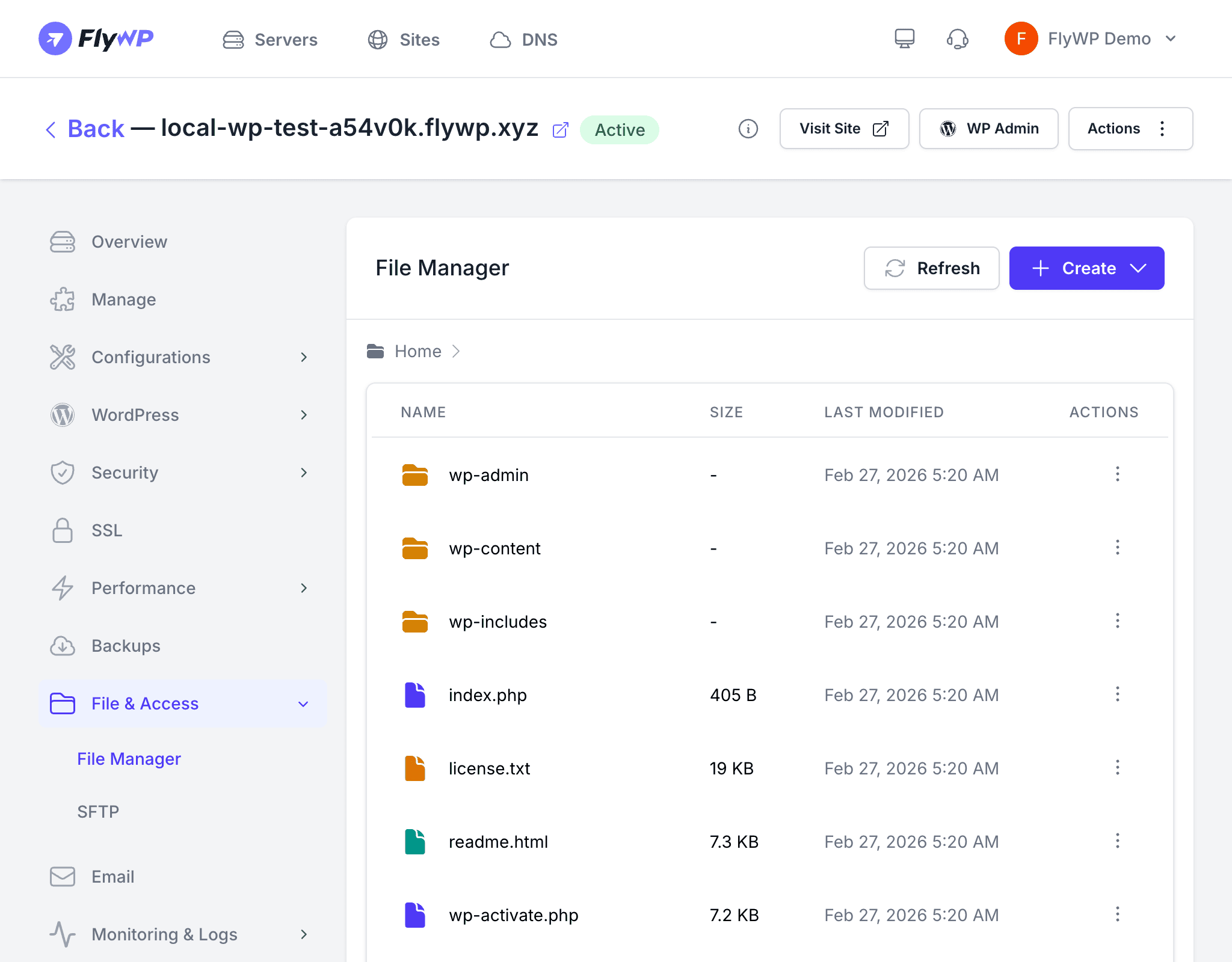
Browsing Files
The file browser displays your site’s directory structure in a familiar tree layout. Click any folder to expand it, or click a file to view its contents.
Key details shown for each file and folder:
- Name — the file or folder name
- Size — file size on disk
- Permissions — the Unix permission mode (e.g., 644 for files, 755 for folders), which controls who can read, write, or execute the file
- Last modified — when the file was last changed
File Operations
Viewing and Editing Files
Click any text-based file (PHP, HTML, CSS, JavaScript, configuration files, etc.) to open it in a built-in code editor. Make your changes and save directly from the dashboard.
Editing files directly on a live production server can break your site if something goes wrong. Always keep a recent backup before making changes, and consider testing on a staging environment (a private copy of your site used for safe experimentation) first.
Uploading and Downloading
FlyWP handles file transfers in both directions without leaving your browser.
- Upload — click the upload button to send files from your local machine to the server. You can upload individual files or multiple files at once.
- Download — select a file and click download to save it to your local machine.
Creating Files and Folders
Create new files or directories anywhere in your site’s file tree. Provide a name and FlyWP creates it with the appropriate default permissions.
Rename, Move, and Delete
- Rename — change a file or folder name in place
- Move — relocate a file or folder to a different directory
- Delete — permanently remove a file or folder from the server
Archive Operations
Archives let you bundle multiple files into a single compressed package — useful for bulk downloads or moving a set of files between locations.
- Extract — unpack
.zip,.tar.gz, and other compressed archives directly on the server - Compress — select files or folders and compress them into an archive for download or storage
Image Previews
FlyWP can stream image previews for common formats (PNG, JPEG, GIF, SVG, WebP) directly in the browser, so you can verify media files are correct without downloading them first.
SFTP Accounts
FlyWP lets you create SFTP accounts to connect from any SFTP-compatible tool. Once connected, you get the same file access as the browser-based manager, but with the comfort of your preferred editor.
Creating an SFTP Account
- Navigate to your site’s File Management tab.
- Scroll to the SFTP Accounts section.
- Click Create SFTP Account.
- Set a username and password.
- Click Create.
The connection details (host, port, and username) appear alongside the account. Use those credentials to connect from your SFTP client of choice.