pCloud
pCloud
If you want your WordPress backups stored somewhere independent of your server and your primary cloud provider, pCloud gives you a dedicated home for them — with the option to pay once and own the storage outright. It’s a smart choice for teams that want long-term backup storage without a recurring monthly bill.
pCloud is a European-based cloud storage service with data centers in both the US and the EU. FlyWP connects to pCloud through OAuth (an industry-standard authorization method that lets you grant FlyWP access to your pCloud without sharing your password) and uses rclone (a reliable open-source file transfer tool) to move your backup files securely.
Prerequisites
Before connecting pCloud, you need:
- A pCloud account with sufficient storage for your backup files
- Permission to authorize third-party apps in your pCloud account
How Authentication Works
pCloud uses OAuth authentication, which means you authorize FlyWP through pCloud’s own login — no passwords are shared with FlyWP directly. Here is how the flow works:
- You click Connect in FlyWP.
- FlyWP redirects you to pCloud’s authorization page.
- You sign in to pCloud and grant FlyWP permission to manage files.
- FlyWP securely stores the access tokens and uses them for all backup operations.
FlyWP refreshes the OAuth tokens automatically in the background, so you do not need to re-authorize unless you explicitly revoke access.
Setup Steps
Connecting pCloud takes under two minutes:
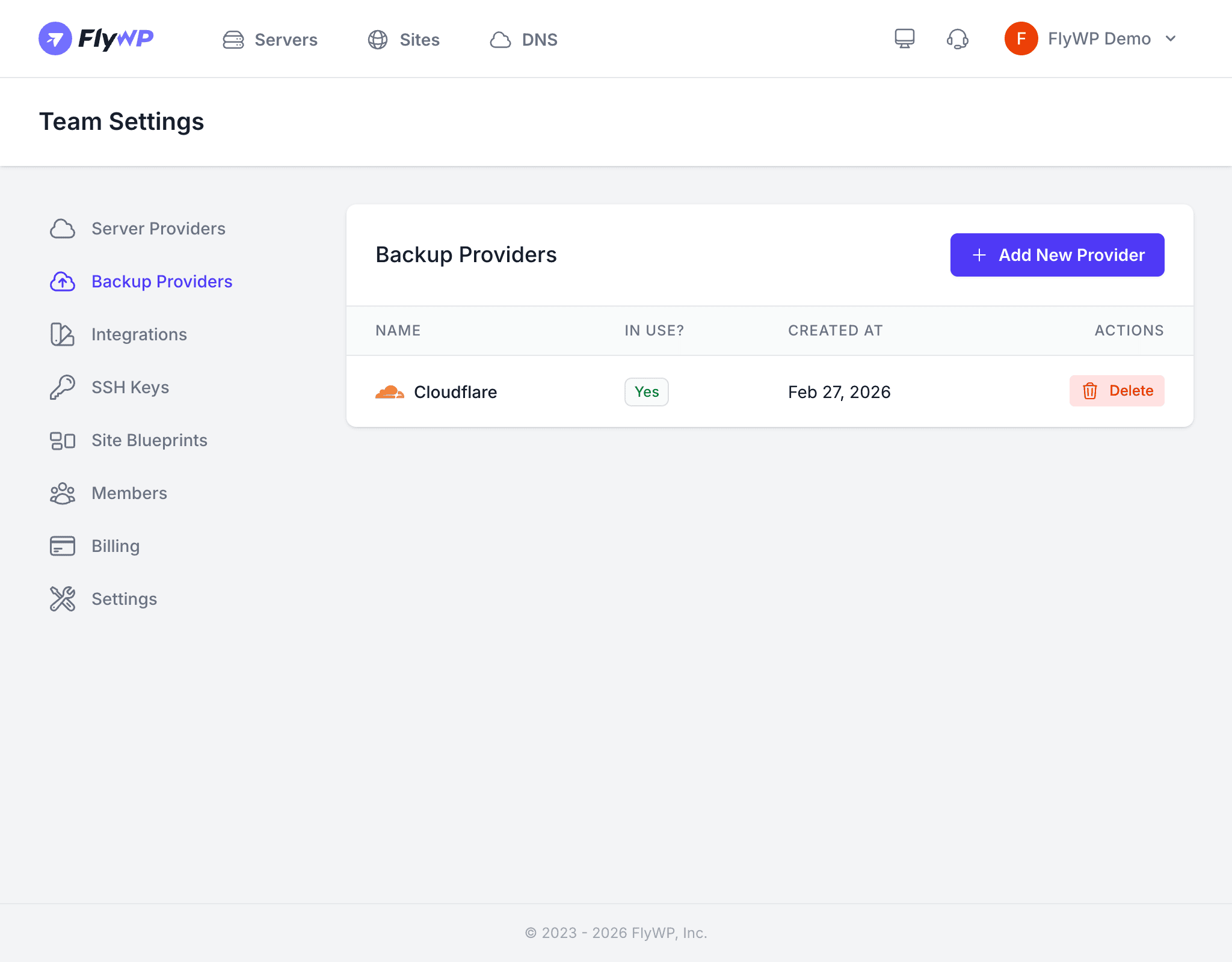
- In FlyWP, go to Team Settings > Backup Providers.
- Click Add Provider and select pCloud.
- Click Authorize with pCloud.
- Sign in to your pCloud account and grant FlyWP access.
- You will be redirected back to FlyWP with the connection confirmed.
Storage Plans
pCloud offers both annual subscription and lifetime plans. Storage is dedicated to your account and not shared with other services, so the full allocation is available for your backups. Lifetime plans are particularly attractive for long-running projects where backup storage costs would otherwise add up over years.
Technical Details
FlyWP uses rclone (an open-source command-line tool for syncing files to cloud storage) installed directly on your server to transfer backup files to pCloud. FlyWP configures rclone automatically when you connect the provider — there is nothing to install manually. OAuth tokens are refreshed in the background before they expire, so backup operations continue without interruption.
Revoking Access
To disconnect pCloud from FlyWP:
- Remove the provider from Team Settings > Backup Providers in FlyWP.
- Optionally, revoke FlyWP’s access in your pCloud account security settings to fully sever the connection.