Backups
Backups
Losing a WordPress site — whether from a failed update, a bad plugin, or an accidental deletion — can mean hours of recovery work. FlyWP’s backup system protects you by capturing your site’s files and database on demand or on an automatic schedule, then storing those snapshots with a cloud storage provider (a remote service like Amazon S3 or Google Drive that holds your files safely off the server). When something goes wrong, you can restore your site to a known good state in a few clicks.
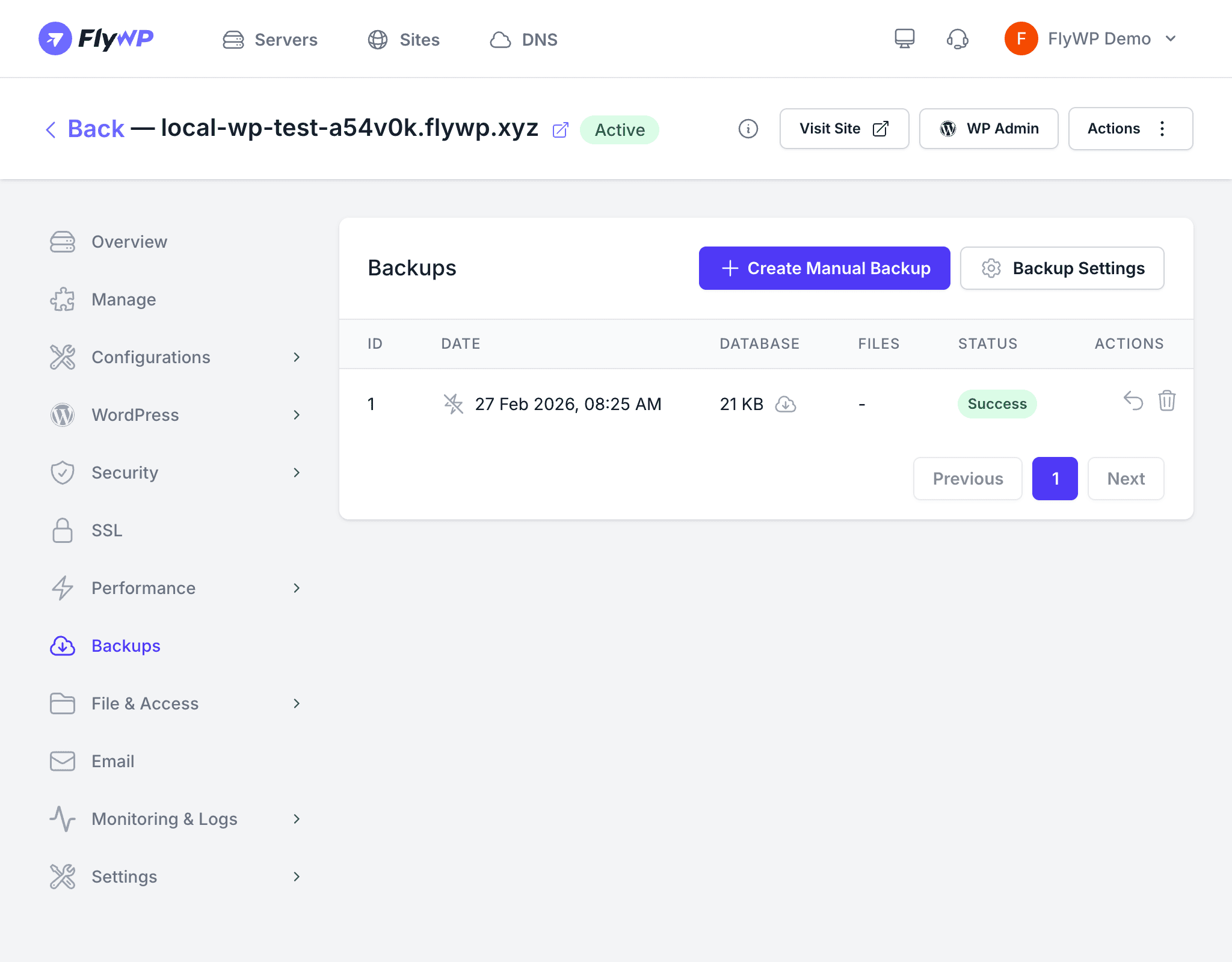
FlyWP supports both manual backups you trigger yourself and scheduled backups that run automatically at the frequency you choose. Backups are stored with your connected cloud storage provider, so your data lives safely off-server.
Creating a Manual Backup
Before making significant changes — a theme update, a plugin upgrade, or a content migration — it’s a good idea to take a manual backup first. To do that:
- Navigate to your site’s Backups tab.
- Click Create Manual Backup.
- FlyWP snapshots both your database and your site files, compresses them, and uploads them to your configured storage provider.
The backup appears in the table below with a Status of “In Progress” until it completes.
Backup Table
The backup list shows every backup taken for this site:
| Column | Description |
|---|---|
| ID | A unique identifier for the backup |
| Date | When the backup was created |
| Database size | The compressed size of the database export |
| Files size | The compressed size of the site files |
| Status | Success or Failed |
| Actions | Restore the backup to this site, or delete the backup from storage |
Scheduled Backups
For ongoing protection without manual effort, click the Backup Settings button to configure automatic backups that run in the background on a schedule you define.
Frequency Options
| Frequency | Description |
|---|---|
| Hourly | A backup runs every hour — best for high-traffic or frequently updated sites |
| Daily | A backup runs once per day — suitable for most sites |
Include and Exclude Files
You can customize which files are included in each backup:
- Include — back up the full site or only specific directories
- Exclude — skip large directories that do not need to be backed up (for example, cache folders or log files)
Auto-Pause on Failure
If a scheduled backup fails three consecutive times, FlyWP automatically pauses the backup schedule and sends you a notification. This prevents repeated failed attempts from consuming storage and server resources. Fix the underlying issue, then re-enable the schedule from the Backup Settings panel.
Supported Backup Providers
FlyWP can store your backups with any of the following cloud storage services. Connect your preferred provider in FlyWP’s global settings before configuring site backups.
| Provider | Notes |
|---|---|
| Amazon S3 | The most widely used object storage (remote file storage); highly durable and scalable |
| Backblaze B2 | Cost-effective S3-compatible storage |
| DigitalOcean Spaces | S3-compatible storage integrated with DigitalOcean infrastructure |
| Wasabi | Hot cloud storage with no egress fees (no charge for downloading your own backups) |
| Google Drive | Store backups in your Google account |
| Dropbox | Store backups in your Dropbox account |
| pCloud | European-based cloud storage with lifetime plans available |
Restoring a Backup
If something breaks and you need to roll back, FlyWP can restore any backup directly from your storage provider. To restore:
- Find the backup you want in the table.
- Click the Restore action.
- Confirm the restore operation.
FlyWP downloads the backup from your storage provider, extracts the files, and imports the database. Your site will be briefly unavailable during the restore process.
Restoring a backup replaces your site’s current files and database with the backup contents. Any changes made after the backup was taken will be lost. Consider creating a fresh backup before restoring an older one.