Server Maintenance
Server Maintenance
Schedule automatic updates during off-peak hours and restart your server when needed.
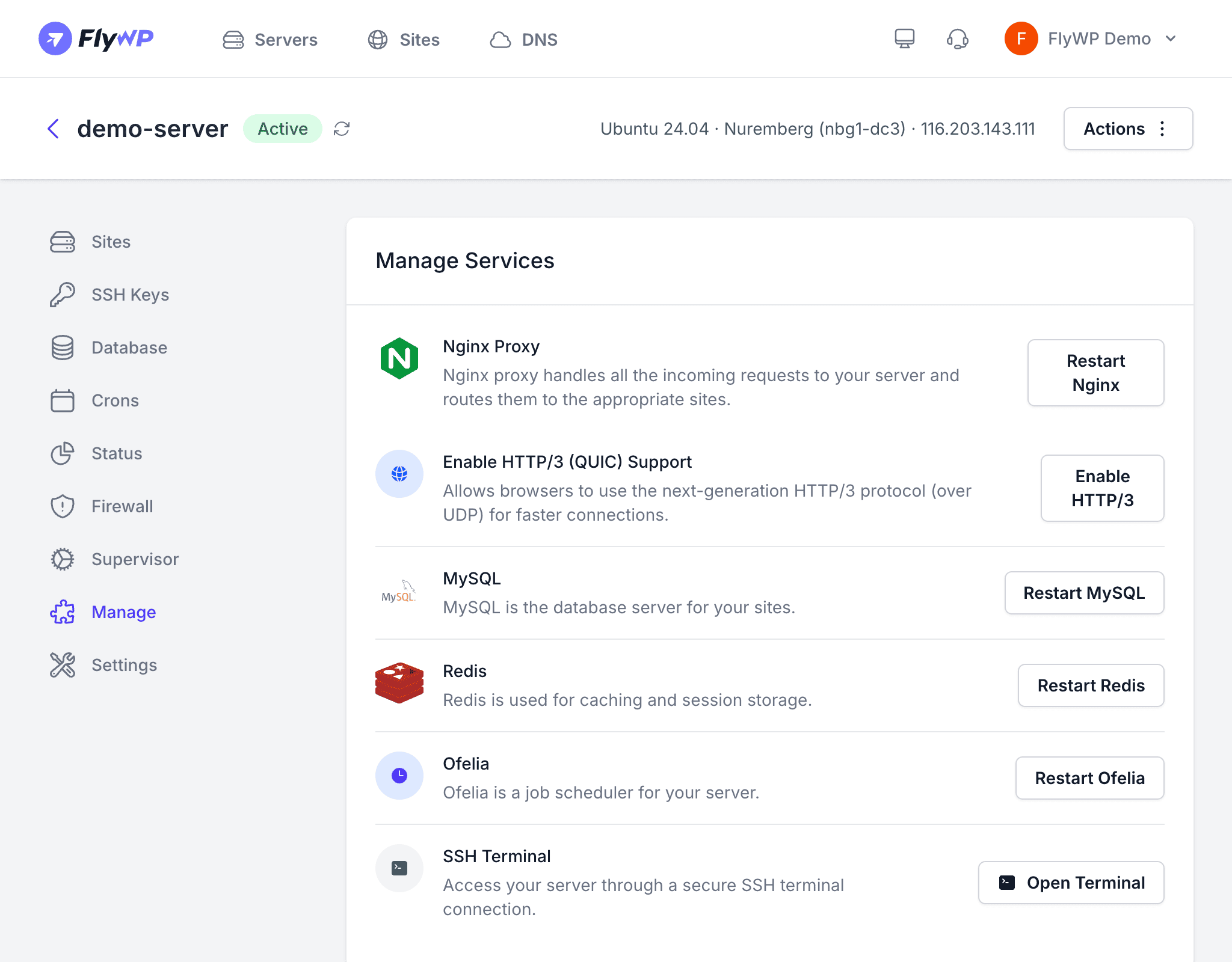
FlyWP servers receive automatic security patches and Docker updates. The maintenance window lets you control when these updates happen so they do not interrupt your busiest traffic periods. You can also manually restart your server from the dashboard when required.
Maintenance Window
A maintenance window defines a recurring weekly time slot during which FlyWP is allowed to apply updates to your server. Updates that arrive outside this window are queued until the next scheduled slot.
Setting a Maintenance Window
- Navigate to your server’s detail page and click the Settings tab.
- Find the Maintenance Window section.
- Select a day of the week (Sunday through Saturday).
- Select an hour (0—23) in your local timezone.
- Click Save.
Choosing the Right Window
Pick a time when your sites receive the least traffic. Common choices include:
| Audience | Suggested Window |
|---|---|
| US-based visitors | Sunday 3:00 AM — 5:00 AM ET |
| EU-based visitors | Sunday 2:00 AM — 4:00 AM CET |
| Global audience | Sunday 6:00 AM — 8:00 AM UTC |
What Gets Updated
During the maintenance window, FlyWP may apply:
- Security patches — critical OS-level fixes delivered by Ubuntu’s
unattended-upgrades - Docker engine updates — newer Docker versions when available
- System package updates — dependencies required by the services running on your server
These updates are non-destructive and do not modify your WordPress sites, databases, or custom configurations.
Restarting Your Server
Sometimes a manual restart is needed — for example, after a kernel update or to clear a stuck process.
How to Restart
- Navigate to your server’s detail page and click the Manage tab.
- Click the Restart Server button.
- A confirmation dialog will appear warning you about temporary downtime.
- Confirm the restart.
FlyWP sends a reboot command to the server over SSH. The server typically comes back online within 1—2 minutes, and all Docker containers (your sites) start automatically.
Restarting the server causes temporary downtime for all sites hosted on it. Active visitors will see connection errors until the server finishes rebooting and Docker containers are back up. Plan restarts during low-traffic periods or your maintenance window.
Best Practices
- Always set a maintenance window — leaving it unset means updates may be applied at unpredictable times.
- Match the window to your lowest traffic — minimizes the chance of visitors encountering brief interruptions.
- Restart sparingly — most updates applied through the maintenance window do not require a reboot. Only restart when explicitly needed.
- Monitor after updates — check the Server Status page after a maintenance window passes to confirm everything is healthy.