Redirect Rules
Redirect Rules
Every time you rename a page, restructure your URLs, or retire old content, you risk leaving visitors and search engines hitting dead ends. Redirect rules let you send anyone who lands on an old URL straight to the right place — protecting your search rankings and ensuring visitors never see a frustrating 404 error. You manage all of this from the FlyWP dashboard, without touching any server config files.
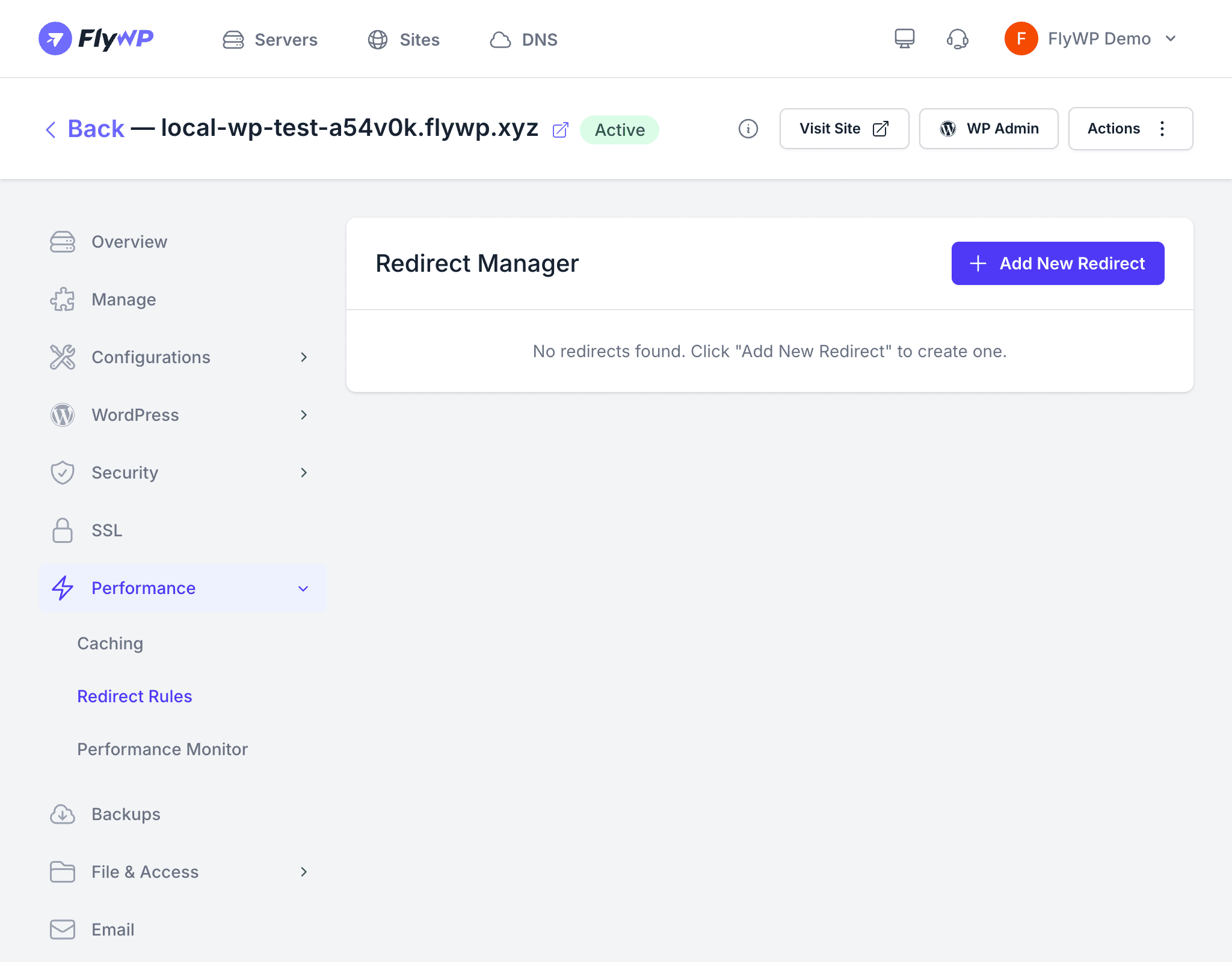
Whether you have changed your URL structure, moved content to a new location, or want to redirect an old domain, FlyWP lets you create and manage redirect rules directly from the dashboard.
Creating a Redirect Rule
Navigate to your site’s Redirect Rules tab, then click Add Redirect Rule. Fill in the three fields and click Save:
- From URL — the path that visitors currently use (e.g.,
/old-page) - To URL — the destination you want to redirect to (e.g.,
/new-pageorhttps://example.com/new-page) - Status Code — the HTTP status code (a standardized number that tells browsers and search engines what kind of redirect this is — see the table below)
Redirect Status Codes
Choosing the right status code matters for SEO (search engine optimization — how well your site ranks in search results) because it tells Google whether the move is permanent or temporary.
| Code | Name | When to Use |
|---|---|---|
| 301 | Permanent Redirect | The page has permanently moved. Search engines transfer SEO value to the new URL. Use this for most content moves. |
| 302 | Temporary Redirect (Found) | The page has temporarily moved. Search engines keep the original URL indexed. Use this for short-term changes. |
| 303 | See Other | Redirects to a different resource using a GET request. Rarely needed for typical WordPress sites. |
| 307 | Temporary Redirect | Like 302, but strictly preserves the HTTP method (POST stays POST). Use when method preservation matters. |
| 308 | Permanent Redirect | Like 301, but strictly preserves the HTTP method. Use for permanent moves where the original request method must be maintained. |
Managing Redirect Rules
Once your rules are in place, you have full control over each one without needing to delete and recreate them.
Enable and Disable
Each redirect rule has a toggle that lets you enable or disable it individually. Disabling a rule keeps it in your list for future use without actively redirecting traffic.
Editing Rules
Click on an existing rule to modify the from URL, to URL, or status code. FlyWP applies your changes immediately after you save.
Deleting Rules
Remove a redirect rule entirely if you no longer need it.
Common Use Cases
Redirect rules come in handy in more situations than you might expect:
- Changing URL structure — redirect old slugs to new ones after a permalink change
- Removing pages — redirect deleted pages to a relevant alternative instead of showing a 404 error
- Domain consolidation — redirect traffic from an old domain to your new one
- www to non-www (or vice versa) — enforce a single canonical domain so search engines index one consistent version
- HTTP to HTTPS — ensure all traffic uses the secure version (FlyWP handles this automatically when SSL is enabled, but you can add custom rules for edge cases)