Custom Server
Custom Server
Already have a server with a hosting provider that FlyWP does not directly support? You can still use FlyWP to manage WordPress on it. Point FlyWP at your server’s IP address (its public network identifier on the internet), and FlyWP connects via SSH (Secure Shell — an encrypted remote login protocol) to install and configure everything automatically.
Overview
A custom server lets you use FlyWP’s full WordPress management features on infrastructure from any hosting provider — not just the five integrated providers. FlyWP connects to your server over SSH, installs all necessary software, and configures it for optimized WordPress hosting.
This is useful when you:
- Have existing servers you want to manage through FlyWP.
- Use a provider that FlyWP does not directly integrate with (e.g., OVH, Google Cloud, Oracle Cloud).
- Have bare-metal or dedicated servers you want to bring under FlyWP management.
Prerequisites
Before adding a custom server, make sure:
- The server runs a fresh installation of Ubuntu (22.04 LTS or later recommended).
- The server has a public IPv4 address (a unique numerical address that identifies your server on the internet).
- Port 22 — the standard port used by SSH — is open and accessible.
- You have root access (full administrative control) to the server.
FlyWP provisions custom servers by installing and configuring software including the web server, PHP, MySQL, and other components. Use a fresh Ubuntu installation to avoid conflicts with existing software. Do not use a server that already has a web server, database, or control panel installed.
Adding a Custom Server
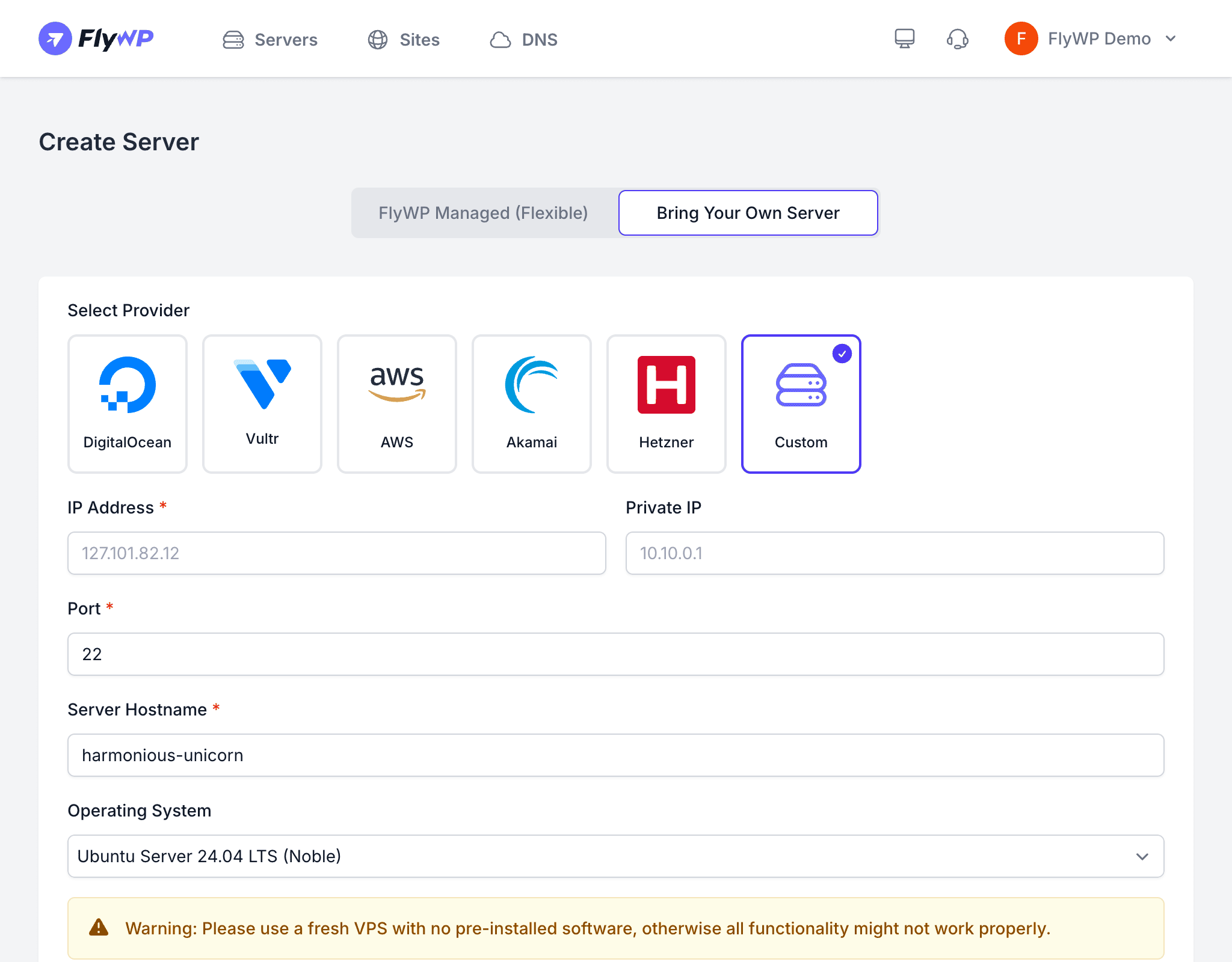
Unlike integrated providers, you add custom servers directly during server creation rather than through the Server Providers settings page. Here is how:
- Navigate to Servers and click Create Server.
- Select Custom as the server provider.
- Enter the server’s public IP address.
- Enter the root password for SSH access.
- Choose your web server stack (Nginx or OpenLiteSpeed).
- Click Create Server.
FlyWP connects to your server via SSH and begins provisioning. The process typically takes a few minutes.
What FlyWP Installs
FlyWP installs and configures the full WordPress hosting stack on your server during provisioning:
- Web server — Nginx or OpenLiteSpeed (based on your selection)
- PHP — Multiple PHP versions available for your sites
- MySQL — Database server for WordPress
- Redis (an in-memory data store that speeds up database queries) — Object caching for improved performance
- SSL — Let’s Encrypt integration for free SSL certificates (SSL/TLS encrypts traffic between your site and visitors)
- Firewall — UFW (Ubuntu’s built-in firewall tool) configured with secure defaults
- Monitoring — Server health monitoring agents
Limitations Compared to Integrated Providers
Custom servers work just like integrated provider servers for day-to-day WordPress management, but there are a few infrastructure-level differences worth knowing:
| Feature | Integrated Providers | Custom Server |
|---|---|---|
| One-click server creation | Yes | No — you provision the VPS yourself |
| Server resizing from FlyWP | Yes | No — resize through your provider |
| Server deletion from FlyWP | Deletes the server at the provider | Only removes from FlyWP dashboard |
| Automated backups | Yes | Yes |
| Site management | Full | Full |
Supported Web Server Stacks
Custom servers support both available web server stacks:
- Nginx — A high-performance web server that is widely used and well-documented.
- OpenLiteSpeed — Includes built-in LiteSpeed Cache support for WordPress, which can improve page load times without extra plugins.
Troubleshooting
If FlyWP cannot connect to your custom server during provisioning, work through these checks:
- Verify the IP address is correct and publicly accessible.
- Check SSH access — ensure port 22 is open in both your provider’s firewall and the server’s own firewall.
- Confirm root access — make sure the root password is correct and password-based SSH login is enabled.
- Check the OS — FlyWP requires Ubuntu. Other Linux distributions are not supported.