Clone and Transfer Sites
Clone and Transfer Sites
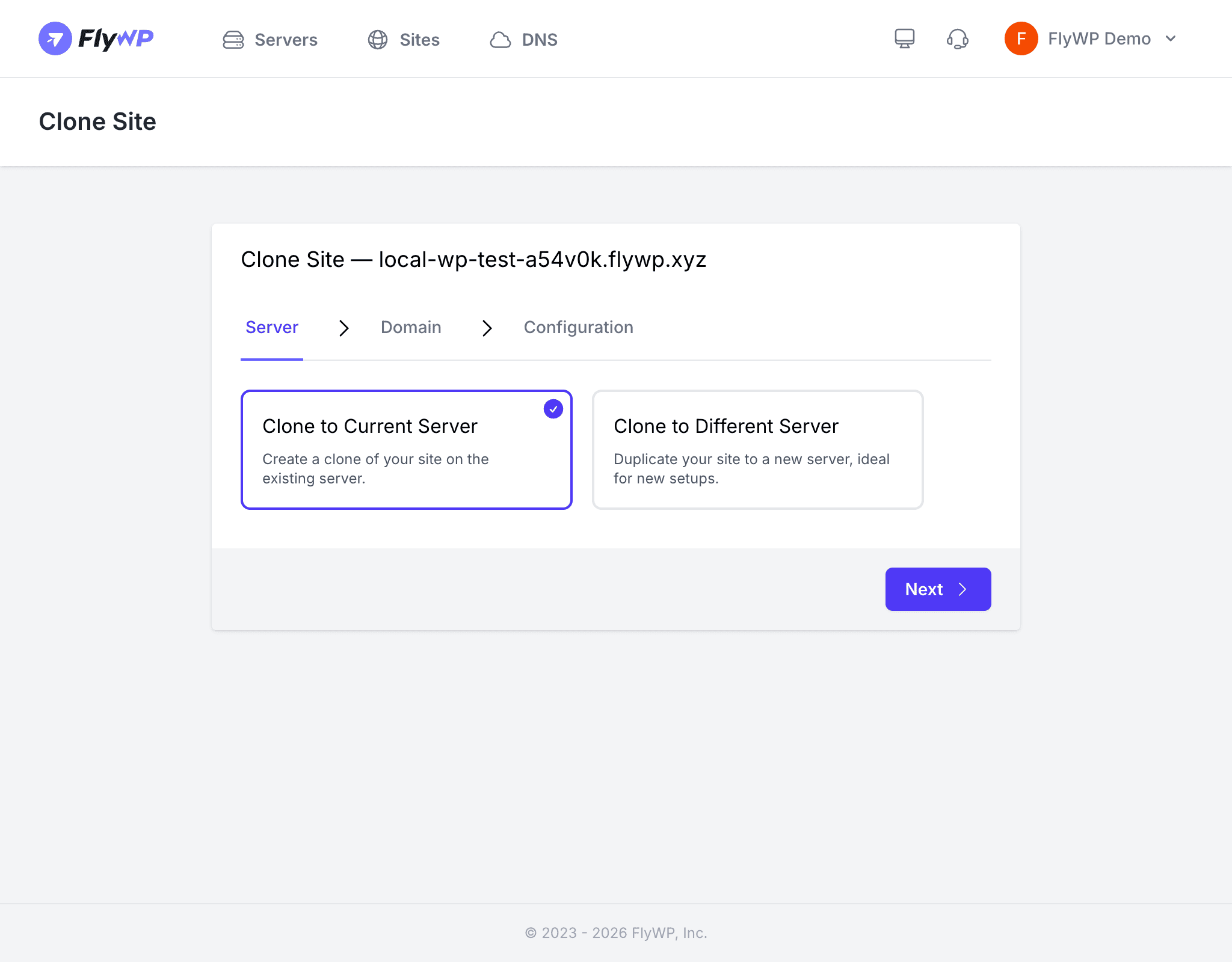
Need to move a live site to a bigger server, push your staging work to production, or hand a client an exact copy of a site you built? Clone and Transfer lets you duplicate or move any WordPress site between your FlyWP servers in a few clicks — no plugins to install, no migration keys to set up, and no manual file copying over SSH (the encrypted shell protocol used to securely connect to servers).
Because both the source and destination are FlyWP servers, the entire process runs server-to-server inside the platform, which makes it significantly faster than migrating from external hosting.
Use Cases
| Scenario | Description |
|---|---|
| Staging to Production | Clone a staging site to push it live on a production server |
| Server Migration | Move a site from one FlyWP server to another (e.g., upgrading hardware) |
| Site Duplication | Create an exact copy of a site for testing, development, or a new client |
| Region Change | Transfer a site to a server in a different geographic region |
How It Works
Here is the sequence FlyWP follows under the hood so you know what to expect:
- FlyWP connects to the source site on your existing server.
- FlyWP transfers all files — plugins, themes, uploads, and other site content — to the destination server.
- FlyWP exports the database (the structured store holding your posts, settings, and user data) from the source, transfers it, and imports it on the destination.
- If the destination domain differs from the source, FlyWP automatically replaces URLs throughout the database to match the new address.
- FlyWP updates configuration files with the new database credentials so WordPress connects correctly.
Starting a Clone or Transfer
- Navigate to your destination server and click Create New Site.
- Select Migrate as the site type.
- Choose the source site from the list of your existing FlyWP sites.
- Configure the new domain name (can be the same as the source or a different one).
- Click Create Site to begin the transfer.
What Gets Transferred
FlyWP copies everything from the source site to the destination:
- All WordPress files (core, plugins, themes, uploads)
- The complete database
- Site configuration
URL Replacements
If the destination domain differs from the source, FlyWP automatically performs a search-and-replace across the database to update:
siteurlandhomeoptions- Serialized data (compactly encoded plugin settings and widget configurations) in options and post meta
- Hard-coded URLs in post content
Real-Time Progress
FlyWP shows live progress as the clone or transfer runs — you can watch the file and database transfer stages complete on the dashboard rather than waiting blindly for it to finish.
After the Transfer
- Visit the cloned site in your browser to confirm it loads correctly.
- If you are migrating to a new server, update your DNS records to point to the new server’s IP address (the unique number that identifies your server on the internet).
- The source site remains completely untouched — FlyWP does not delete or modify it during the process.
If you are replacing a production site, update your DNS records only after verifying the transferred site works correctly on the new server. Switching DNS too early could send visitors to a broken site.