Server Providers
Server Providers
Before you can launch a server through FlyWP, you need to tell FlyWP where to put it. Connecting a cloud provider account takes just a few minutes, and once it’s done, you can spin up and manage servers on that provider entirely from the FlyWP dashboard — no logging into a separate cloud console.
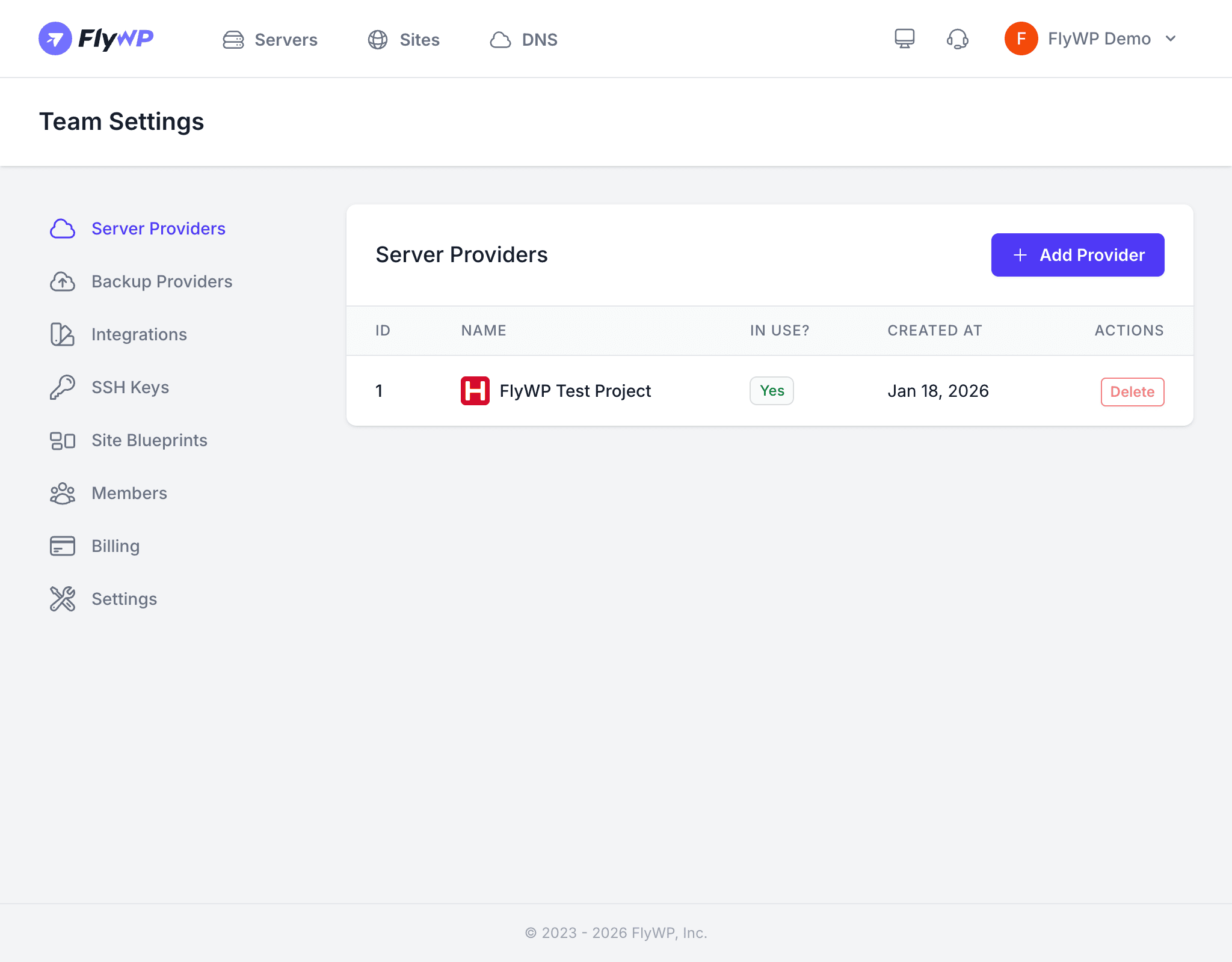
When you connect a provider, you give FlyWP an API token (a secure key that grants programmatic access to your cloud account) scoped only to server operations. FlyWP uses that token to provision new servers, check their status, and clean them up — all on your behalf, all without you touching the cloud provider’s own interface.
Supported Providers
FlyWP works with the following cloud infrastructure platforms. Each requires a different type of credential:
| Provider | Credential Type |
|---|---|
| DigitalOcean | API token |
| Vultr | API key |
| AWS (Amazon Web Services) | IAM access key and secret |
| Akamai (Linode) | Personal access token |
| Hetzner | API token |
Adding a Provider
To connect a cloud provider account, follow these steps:
- Navigate to Team Settings > Server Providers.
- Click Add Provider.
- Select the cloud provider from the list.
- Enter a name for this connection (e.g.,
DO ProductionorHetzner EU). - Paste your API token or credentials from the cloud provider’s dashboard.
- Click Save.
Once connected, the provider appears in the server providers table and becomes available when you create a new server.
Provider Table
The server providers table shows a summary of every connected account at a glance:
| Column | Description |
|---|---|
| ID | A unique identifier assigned by FlyWP |
| Name | The label you gave the connection, shown alongside the provider’s logo |
| In Use | Whether any active servers are using this provider connection |
| Created | The date the connection was added |
| Actions | Delete the provider connection |
Deleting a Provider
Click the Delete button next to a provider to remove it. FlyWP immediately revokes its access to that cloud account.
Deleting a provider connection does not delete the servers that were created through it. Those servers continue to run on the cloud provider — you lose the ability to manage them from FlyWP. Confirm that no active servers depend on a connection before you remove it.
How Credentials Are Stored
FlyWP stores your API keys and tokens using encryption (a process that scrambles the data so it cannot be read without a secret key). FlyWP uses these credentials only to perform server operations you initiate — provisioning, resizing, or deleting servers — and never accesses your cloud account for any other purpose.
Where to Find Your API Credentials
Each cloud provider has its own place to generate credentials. Here is where to look for each one:
| Provider | Where to Get Credentials |
|---|---|
| DigitalOcean | API > Tokens > Generate New Token |
| Vultr | Account > API > Personal Access Token |
| AWS | IAM > Users > Security Credentials > Create Access Key |
| Akamai (Linode) | My Profile > API Tokens > Create a Personal Access Token |
| Hetzner | Cloud Console > Security > API Tokens > Generate API Token |
Provider Guides
Each provider has a step-by-step setup guide with screenshots showing exactly where to find the credentials: