FileZilla SSH Access
FileZilla SSH Access
Transfer files to and from your server using FileZilla over a secure SFTP connection.
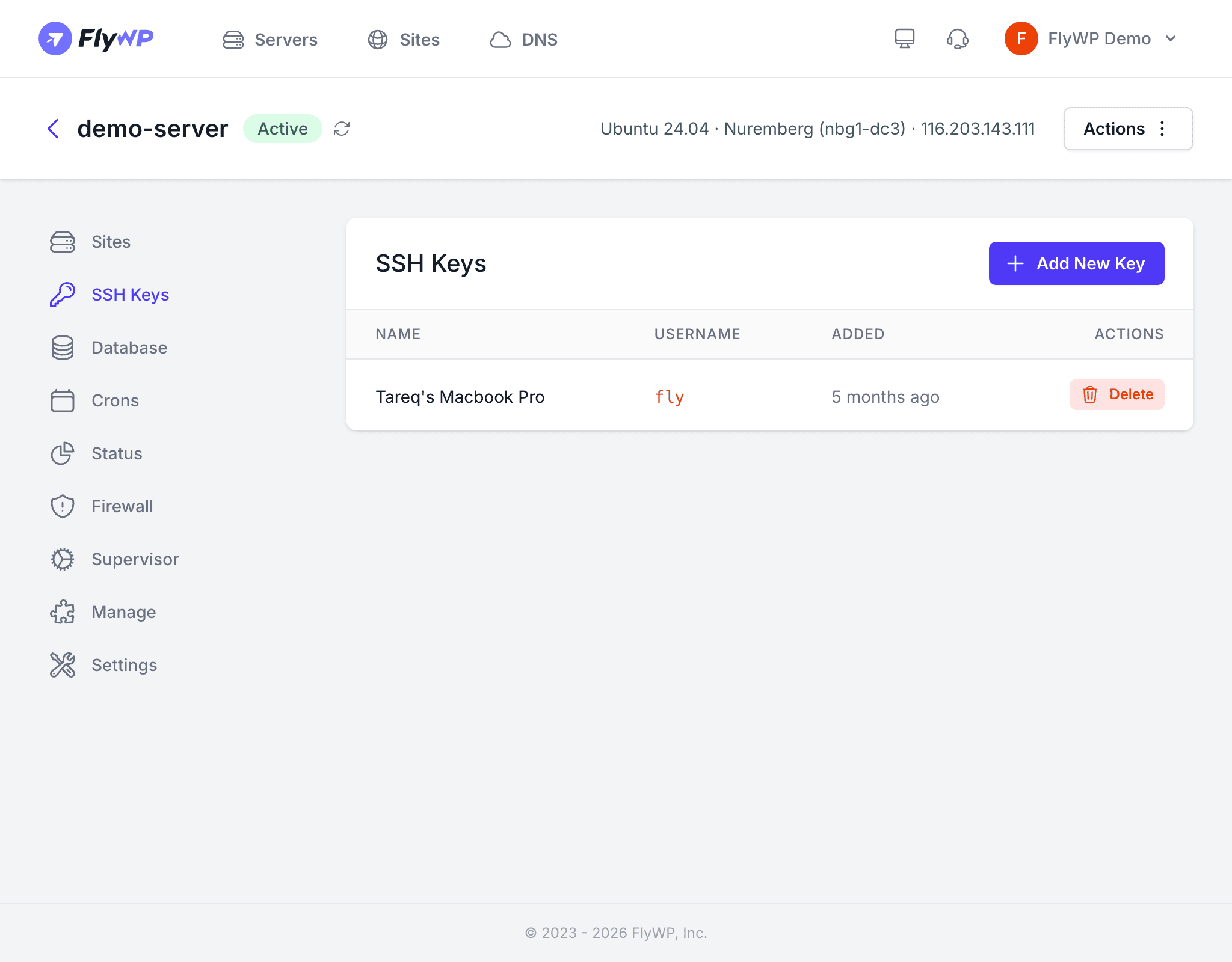
FileZilla is a popular, free FTP client that supports SFTP (SSH File Transfer Protocol). Since FlyWP servers have password authentication disabled, you must use SSH key-based authentication to connect. This guide walks you through the setup.
Prerequisites
Before connecting, make sure you have:
- FileZilla installed on your computer (download from filezilla-project.org)
- An SSH key pair — the same private key whose public counterpart is added to your server in FlyWP
- Your server’s IP address, visible on the server detail page in FlyWP
Connecting to Your Server
- Open FileZilla and go to File > Site Manager (or press
Ctrl+S/Cmd+S). - Click New Site and give it a name (e.g., “My FlyWP Server”).
- Configure the connection settings:
| Setting | Value |
|---|---|
| Protocol | SFTP - SSH File Transfer Protocol |
| Host | Your server’s IP address |
| Port | 22 |
| Logon Type | Key file |
| User | fly |
| Key file | Path to your private key (e.g., ~/.ssh/id_ed25519) |
- Click Connect.
FileZilla will establish an encrypted SFTP session using your SSH key. You should see the remote file system on the right side of the FileZilla window.
Navigating the File System
Once connected as the fly user, you land in the /home/fly directory. Important paths include:
| Path | Description |
|---|---|
/home/fly/ | Home directory for the fly user |
/home/fly/.docker/ | Docker configuration files |
Since FlyWP runs each site inside a Docker container, site files are not directly accessible at a simple path on the host. To manage individual site files, use per-site SFTP accounts instead.
Per-Site SFTP Access
FlyWP can create dedicated SFTP accounts scoped to a specific site. These accounts drop you directly into the site’s file directory, making it easy to upload themes, plugins, or media files.
Per-site SFTP credentials support two authentication methods:
- Password — a username and password generated by FlyWP
- SSH key — the same key-based approach used for the server-level
flyuser
To set up per-site SFTP access, go to your site’s detail page and look for the SFTP settings. See the SFTP Access page for full instructions.
Troubleshooting
| Problem | Solution |
|---|---|
| Connection refused | Verify port 22 is open in your server’s Firewall rules |
| Authentication failed | Confirm the public key matching your private key is added in FlyWP under SSH Keys |
| Key format not supported | Allow FileZilla to convert your key to .ppk format when prompted |
| Connection timed out | Check that your IP is not blocked by a restrictive firewall rule |
Never share your private SSH key file. If you suspect your key has been compromised, remove it from the server immediately via the FlyWP dashboard and generate a new key pair.