FastCGI Caching
FastCGI Caching
If your WordPress site feels slow under traffic, FastCGI caching is one of the most effective fixes available. Instead of running PHP and querying the database for every visitor, Nginx (a high-performance web server) stores the fully rendered HTML of each page and serves that saved copy directly — delivering responses in single-digit milliseconds. The result is dramatically faster page loads without changing a single line of your theme or plugins.
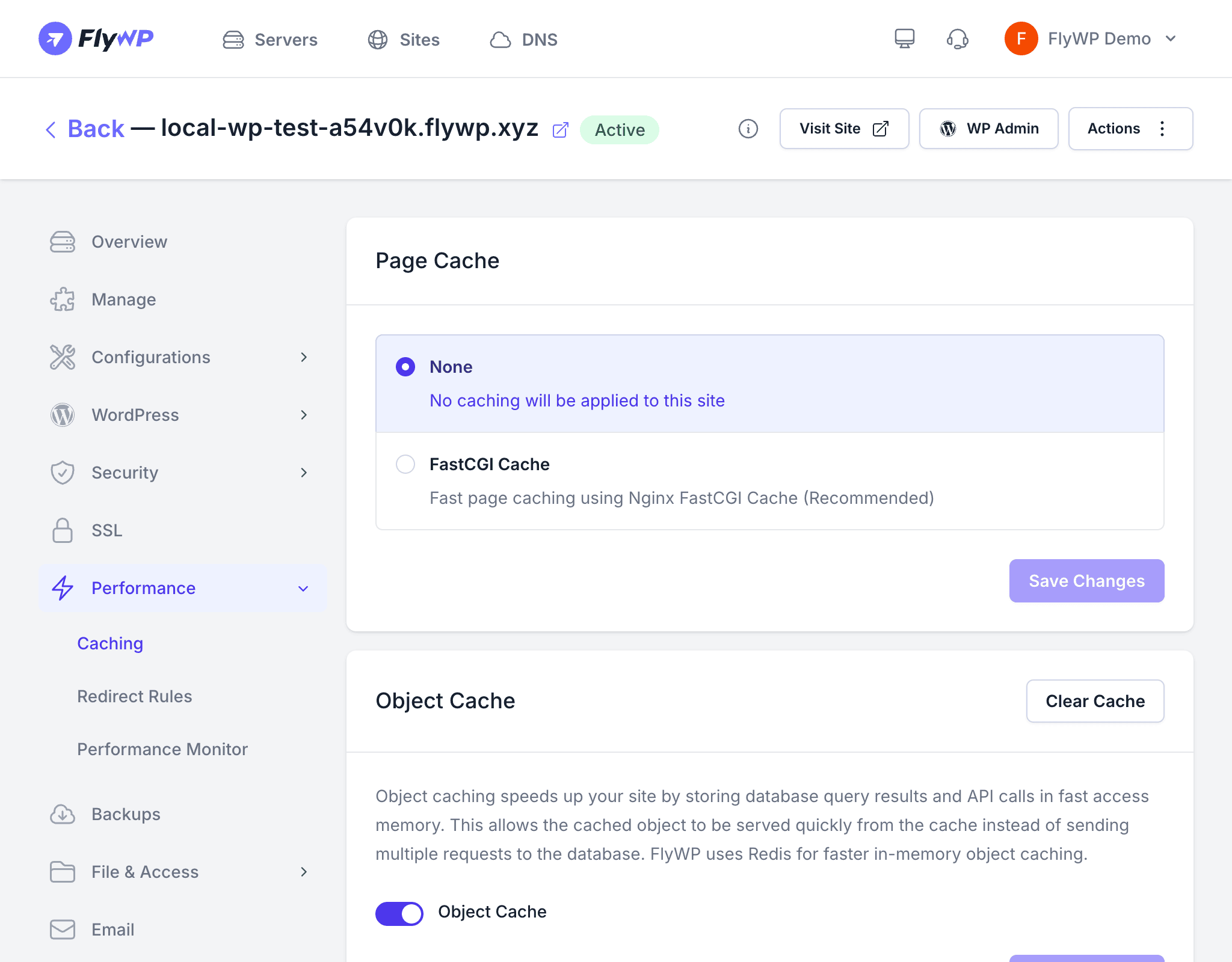
FastCGI Cache works at the server level, meaning it intercepts requests before PHP ever runs. On the first visit to a page, Nginx passes the request to PHP, caches the output, then serves that cached copy to every subsequent visitor until the cache expires. This approach eliminates PHP processing and database queries for anonymous visitors, making it ideal for content-heavy sites, blogs, and landing pages that receive high traffic but don’t change by the minute.
Requirements
FastCGI Cache is only available for sites running on the Nginx web stack. If your server uses OpenLiteSpeed (an alternative web server), see the Page Caching overview for LiteSpeed Cache instead.
Enabling FastCGI Cache
To turn on FastCGI Cache for a site:
- Navigate to your site’s detail page and click the Caching tab.
- In the Page Cache section, select FastCGI Cache.
- Configure the cache duration (see below).
- Click Save.
FlyWP updates the Nginx configuration for your site automatically. No server restart is needed — the changes take effect immediately.
Cache Duration
The cache duration controls how long Nginx keeps a cached copy before re-generating the page from PHP. Think of it as an expiry timer: once it runs out, the next visitor triggers a fresh PHP render that gets cached again.
| Setting | Range |
|---|---|
| Minimum | 1 second |
| Default | 1 hour |
| Maximum | 720 hours (30 days) |
You can set the duration using the following units:
| Unit | Example |
|---|---|
| Seconds | 30 seconds |
| Minutes | 15 minutes |
| Hours | 1 hour (default) |
| Days | 7 days |
Cache Exclusions
Not every page should be cached. Dynamic pages like shopping carts and logged-in dashboards need to show live, personalized data. FastCGI Cache uses exclusion rules to ensure these pages are always served fresh. FlyWP provides built-in presets to handle the most common cases automatically.
Exclusion Presets
| Preset | What It Excludes |
|---|---|
| WooCommerce | Cart, checkout, account pages, and requests with WooCommerce cart cookies |
| WordPress Admin | /wp-admin/* and /wp-login.php |
| WordPress Cache | Standard paths including /feed/* and cache-busting query strings |
Cookie-Based Bypasses
Requests containing certain cookies (small data tokens a browser sends to identify a user’s session) automatically bypass the cache:
- Logged-in users — the
wordpress_logged_in_*cookie signals that the visitor has an active session, so they always see fresh, personalized content. - WooCommerce shoppers — the
woocommerce_items_in_cartcookie ensures that users with items in their cart are not served a cached version of cart or checkout pages.
Clearing the FastCGI Cache
Click the Clear Cache button on the Caching tab to purge all cached pages at once. You should clear the cache after making significant changes to your site’s content, themes, or plugins — otherwise visitors may see outdated versions of your pages.
How the Configuration Is Stored
FlyWP stores the FastCGI Cache configuration in the site’s Nginx settings. When you save changes, a background job regenerates the Nginx configuration file for your site and reloads Nginx gracefully — with zero downtime.
Best Practices
- Start with the default duration (1 hour) and increase it only if your content changes infrequently.
- Enable WooCommerce exclusions if you run a store — this prevents cart and checkout issues for your customers.
- Clear the cache after deployments — if you deploy via Git or SFTP (a secure file transfer protocol), clear the cache to ensure visitors see the latest version.
- Monitor performance with PageSpeed Insights to measure the impact of caching on your site’s load times.
Setting an extremely short cache duration (for example, 1 second) effectively disables caching and offers no performance benefit. If you need very short cache times, consider whether page caching is the right tool for your use case.