Backup and Restore
Backup and Restore
Losing site data can be catastrophic — a failed plugin update, a botched migration, or an accidental deletion can take your site down in seconds. FlyWP’s backup system gives you a safety net you can fall back on at any time. You can trigger a backup on demand before making risky changes, or let FlyWP run them automatically on a schedule so you are always covered without thinking about it.
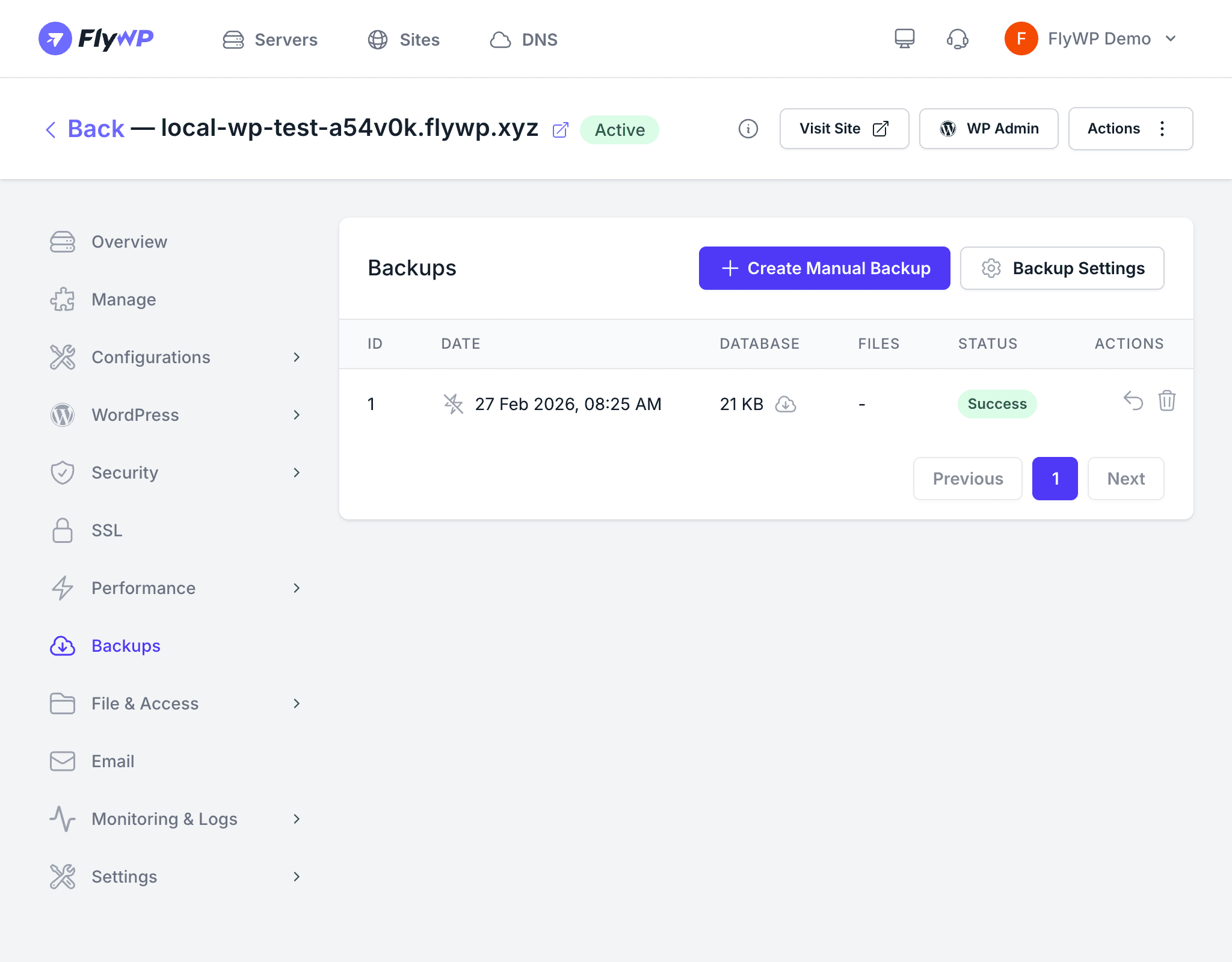
FlyWP backs up both your site’s database (all your posts, settings, and user data) and files (your themes, plugins, and uploads), compresses them into a single archive, and uploads them to your connected cloud storage provider (a remote service like Amazon S3 or Backblaze where files are stored securely off your server).
Backup Types
| Type | Description |
|---|---|
| Manual | Triggered on-demand from the Backups tab — useful before major changes |
| Scheduled | Runs automatically at the frequency you configure |
Creating a Manual Backup
Reach for a manual backup any time you are about to do something risky — updating core WordPress, installing a new plugin, or running a migration. It takes only a moment and gives you a restore point you can trust.
- Navigate to your site’s Backups tab.
- Click Create Manual Backup.
- FlyWP snapshots the database and site files, compresses them, and uploads the archive to your storage provider.
The backup appears in the list with a status of Creating until it completes.
Backup Statuses
| Status | Description |
|---|---|
| Creating | The backup is in progress |
| Success | The backup completed and FlyWP uploaded it to your provider |
| Failed | Something went wrong — check server connectivity and storage credentials |
| Delayed | The backup is waiting because another operation is in progress |
Configuring Scheduled Backups
Click Backup Settings to configure automatic backups.
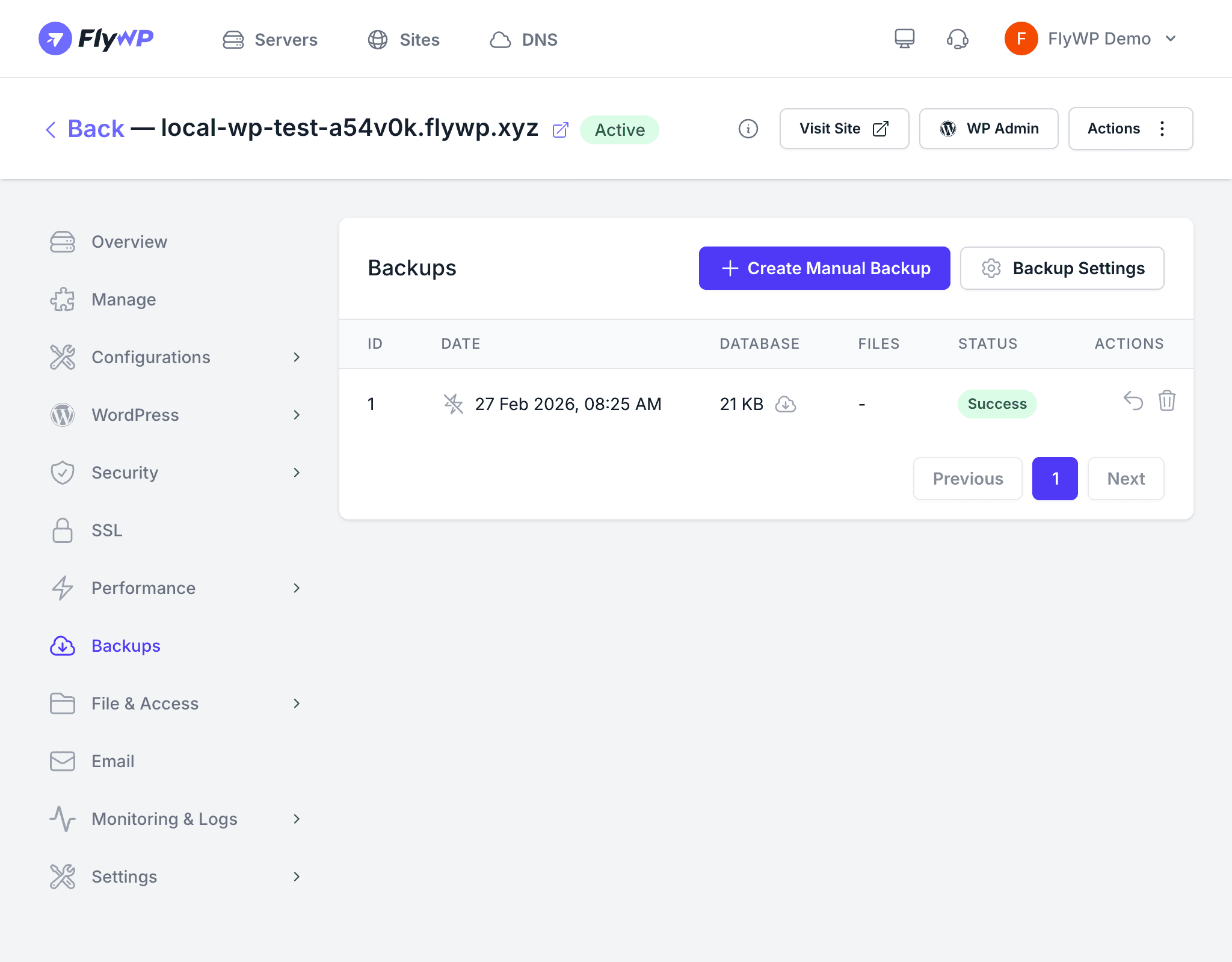
Frequency
| Option | Best For |
|---|---|
| Hourly | High-traffic sites or sites with frequent content changes |
| Daily | Most WordPress sites with regular updates |
Retention
Set how many backups to keep. FlyWP automatically deletes older backups beyond the retention count from your storage provider, so you do not accumulate unlimited storage costs.
Exclude Paths
FlyWP excludes 58 common non-essential paths by default, including node_modules, .git, cache folders, and log directories. You can customize the exclude list to skip additional large directories that do not need to be backed up.
Auto-Pause on Failure
If a scheduled backup fails three consecutive times, FlyWP automatically pauses the backup schedule and sends you a notification. This prevents repeated failures from consuming server resources and storage space.
To resume backups after you have resolved the underlying issue:
- Go to Backup Settings.
- Click Resume Backups.
Restoring a Backup
Restoring rolls your site back to exactly the state it was in when the backup ran — files, database, everything. Use this when a bad update breaks your site or you need to undo a change that went wrong.
- Find the backup you want in the backup list.
- Click the Restore action.
- Confirm the restore operation.
FlyWP downloads the backup from your storage provider, extracts the files to your site directory, and imports the database. Your site will be briefly unavailable during the restore.
Restoring a backup replaces your current files and database entirely. Any changes made after the backup was taken will be lost. Create a fresh backup before restoring an older one.
Downloading a Backup
You can download any successful backup directly from the dashboard — useful if you want to keep a local copy or inspect the archive yourself. Click the Download action next to the backup you want. FlyWP generates a temporary download link from your storage provider.
Deleting a Backup
Click Delete next to any backup to remove it from your storage provider. This action is permanent and cannot be undone.
Notifications
FlyWP keeps you informed so you are never surprised by a missing backup. It sends notifications when:
- A backup completes successfully
- A backup fails
- Scheduled backups are paused due to consecutive failures