Centralized Bulk Updates
Centralized Bulk Updates
Keeping every WordPress site patched and up to date is one of the most important — and most tedious — parts of managing multiple sites. Centralized Bulk Updates solves that by letting you check for and install plugin, theme, and WordPress core updates across every site you manage, all from one place. No more logging into each site’s admin panel one by one.
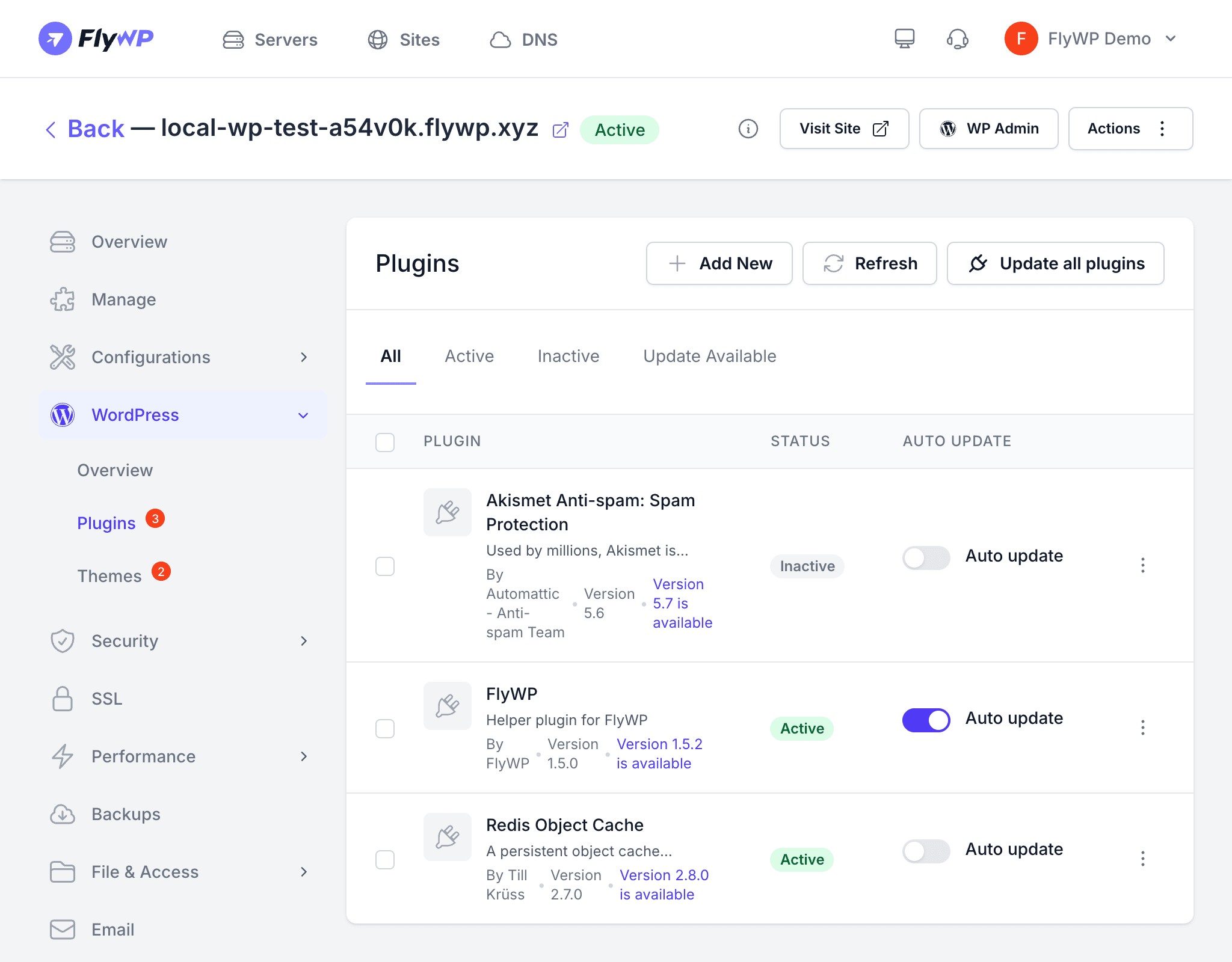
FlyWP communicates with each site’s helper plugin (a small plugin installed on each WordPress site that acts as a secure bridge between FlyWP and WordPress) to discover available updates and push installations. All communication is authenticated using each site’s unique API key (a secret token that proves requests are coming from your FlyWP account).
How It Works
- FlyWP sends a request to the helper plugin’s
/fly-api/updatesendpoint (a URL on your site that only FlyWP can call) on each site. - The helper plugin queries the WordPress update API and returns a list of available plugin, theme, and core updates.
- You review the updates in the FlyWP dashboard and choose which ones to install.
- FlyWP sends installation requests back to the appropriate helper plugin endpoints.
- The updates are installed on the site and results are reported back to your dashboard.
Update Types
| Type | Endpoint Called | What Gets Updated |
|---|---|---|
| Plugins | /fly-api/update-plugins | One or more WordPress plugins |
| Themes | /fly-api/update-themes | One or more WordPress themes |
| Core | /fly-api/update-core | WordPress core files |
Checking for Updates
Navigate to your site’s detail page and click the Updates tab. FlyWP automatically checks for available updates and displays them in categorized lists. Each update shows the current version, the available version, and the update status.
Installing Updates
- On the Updates tab, review the list of available updates.
- Select the plugins, themes, or core version you want to update.
- Click the corresponding Update button.
- FlyWP sends the update request to your site and displays the result.
Always take a backup before running bulk updates, especially for major version changes. While most updates are safe, a plugin or theme conflict can temporarily break your site.
Updating Across Multiple Sites
From the central dashboard, you can see update availability across all your sites at a glance. This is especially useful when a critical security patch is released and you need to update a plugin on dozens of sites quickly.
- FlyWP caches plugin metadata so you can browse pending updates without waiting for each site to respond individually.
- FlyWP processes updates per site, so a failure on one site does not block updates on others.
Prerequisites
For centralized updates to work, each site must have:
- The FlyWP Helper Plugin installed and in an Enabled state.
- A valid API key for authentication.
- Network connectivity between FlyWP and the site (see Whitelist FlyWP in Cloudflare if you use Cloudflare, a popular CDN (content delivery network) and WAF (web application firewall) service).
Troubleshooting
- “Unable to check updates” — The helper plugin may be disabled or missing. Visit the site overview and run Check & Fix.
- Update fails silently — Check that the server has enough disk space and that file permissions allow writing to
wp-content/. - Updates blocked by Cloudflare — If your site is behind Cloudflare, FlyWP’s API requests may be blocked by WAF rules. Whitelist FlyWP’s IP addresses to allow them through.