WireGuard
WireGuard
If you want your team or devices to browse the internet securely through your own server — without trusting a third-party VPN provider — WireGuard gives you that control. FlyWP deploys WireGuard as a one-click app with a browser-based admin panel, so you can add and remove devices without touching any configuration files.
Why WireGuard?
WireGuard stands out from older VPN protocols like OpenVPN and IPSec in a few meaningful ways:
- Fast — WireGuard is significantly faster than OpenVPN and IPSec (other VPN protocols), with lower latency and higher throughput
- Simple — minimal configuration compared to traditional VPN solutions
- Secure — uses modern cryptography standards (ChaCha20, Curve25519, BLAKE2s) that are widely trusted by security researchers
- Cross-platform — clients available for Windows, macOS, Linux, iOS, and Android
- Web admin UI — manage clients through a browser instead of editing config files by hand
Deploying WireGuard
To get WireGuard running on your server, follow these steps:
- Navigate to your server in the FlyWP dashboard.
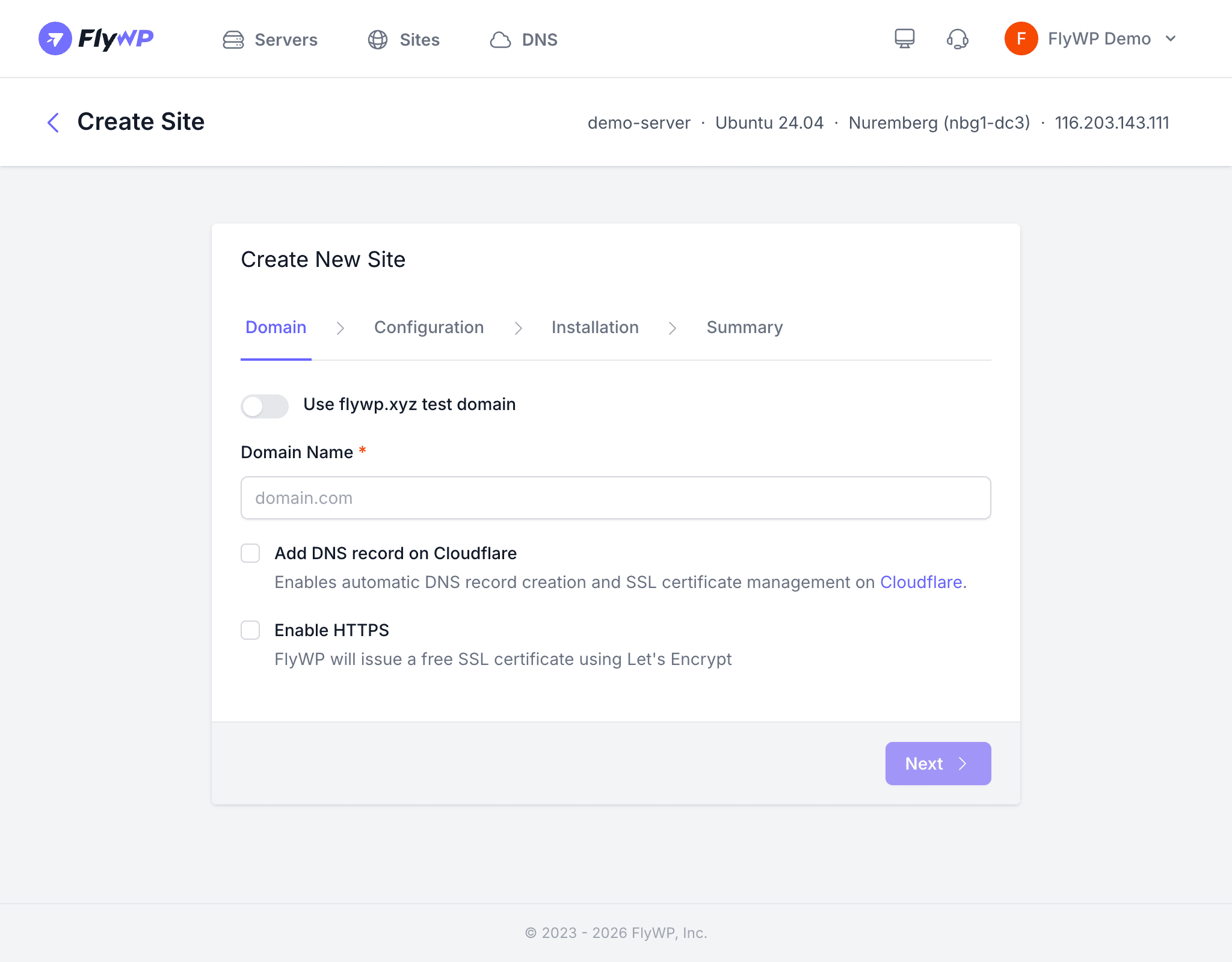
- Go to the One-Click Apps section or click Create Site.
- Select WireGuard.
- Enter a domain for the admin interface (e.g.,
vpn.yourdomain.com). - Click Create.
FlyWP sets up the WireGuard container (an isolated environment that runs the VPN service), configures NGINX (the web server) for the admin panel, and provisions an SSL certificate (the encryption layer that keeps your connection private) automatically.
Environment Configuration
You can customize WireGuard’s behavior by setting environment variables (configuration values that control how the app runs) from the FlyWP dashboard:
| Variable | Description |
|---|---|
WG_HOST | The public IP or hostname of your server |
PASSWORD | Password for the web admin interface |
WG_DEFAULT_DNS | DNS server for VPN clients — DNS (Domain Name System) translates domain names to IP addresses (e.g., 1.1.1.1) |
WG_DEFAULT_ADDRESS | Client IP address range for devices on your VPN (e.g., 10.8.0.x) |
Managing VPN Clients
A “client” in WireGuard terms is any device you authorize to connect to your VPN — a laptop, phone, or tablet. Access the web admin panel at your configured domain to manage them:
- Create a new client — assign a name and generate a configuration
- Download config files — get
.conffiles for each client device - Scan QR codes — mobile devices can scan a QR code to import the configuration instantly
- Enable/disable clients — toggle individual client access without deleting them
- Delete clients — permanently remove a client’s access
Connecting Devices
Once you have a client configured in the admin panel, connecting a device takes three steps:
- Install the WireGuard client on your device (wireguard.com/install).
- Import the configuration file or scan the QR code from the admin panel.
- Activate the VPN tunnel.
Once connected, all traffic from the device routes through your FlyWP server.
Make sure UDP port 51820 is open in your server’s firewall (the network security layer that controls which connections are allowed). FlyWP may configure this automatically, but verify it if clients cannot connect.