Vaultwarden
Vaultwarden
If you’ve ever worried about trusting a third-party company with every password you own, Vaultwarden gives you an alternative: a full-featured password manager that runs on your own server, under your control. You get all the convenience of Bitwarden (browser extensions, mobile apps, desktop clients) without your credentials ever leaving your infrastructure.
Vaultwarden is a lightweight, open-source implementation of the Bitwarden server API (the communication protocol that Bitwarden clients use to sync data). It stores and syncs passwords, secure notes, and other sensitive data across all your devices using the official Bitwarden apps — while everything stays on your server.
Why Vaultwarden?
Vaultwarden covers everything most people need from a password manager, and then some:
- Full Bitwarden compatibility — works with all official Bitwarden clients (desktop, mobile, browser extensions, CLI)
- Self-hosted — your passwords never leave your server
- Lightweight — runs with minimal CPU and RAM (random-access memory) compared to the official Bitwarden server, so even a small VPS handles it well
- Premium features included — TOTP (time-based one-time passwords, used for two-factor authentication), file attachments, and organization support are available without a paid subscription
Deploying Vaultwarden
FlyWP handles the entire setup — provisioning the container (an isolated environment that packages the app and everything it needs to run), configuring NGINX (the web server that routes traffic to the app) as a reverse proxy, and issuing an SSL (Secure Sockets Layer) certificate so your vault is served over HTTPS.
To deploy:
- Navigate to your server in the FlyWP dashboard.
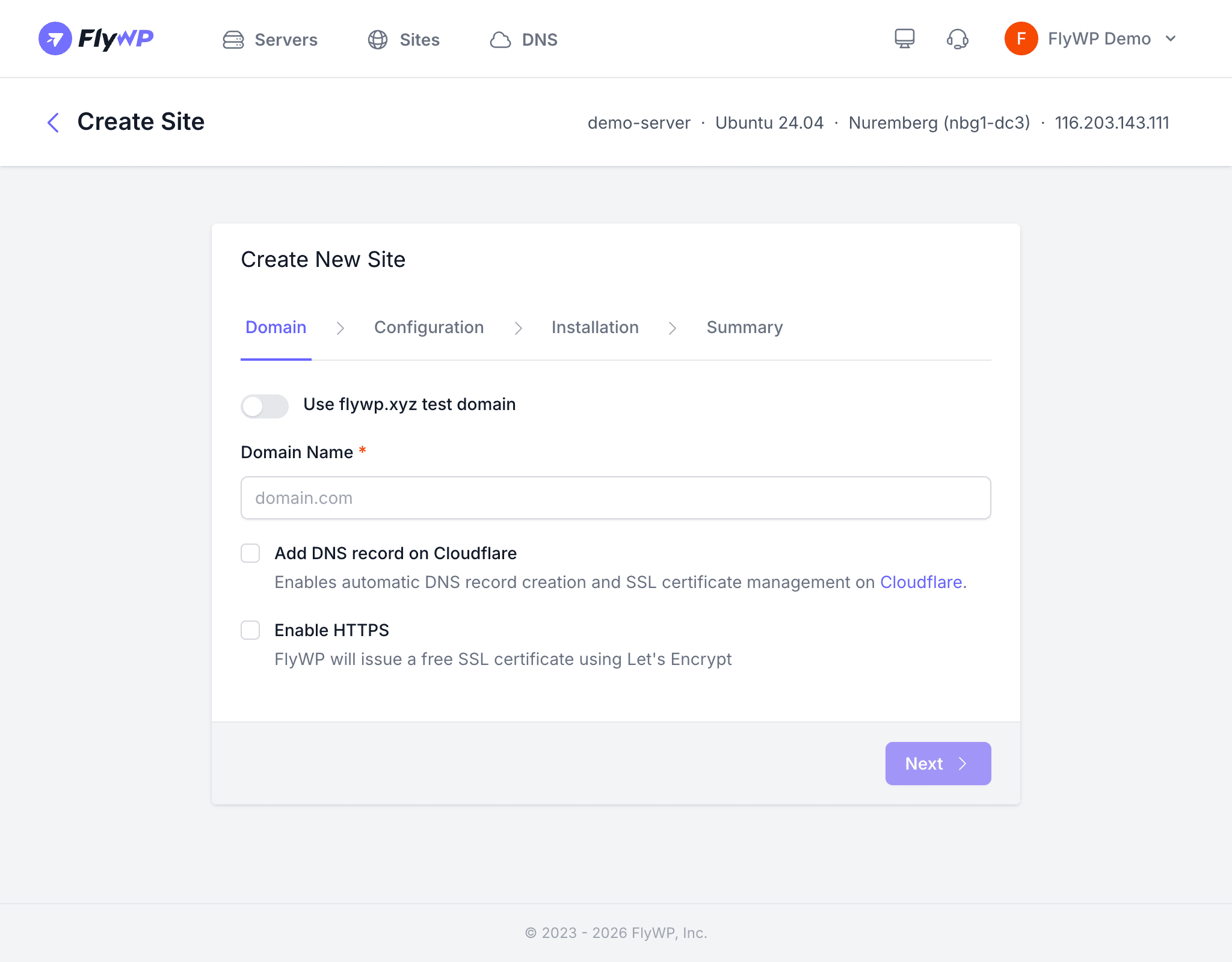
- Go to the One-Click Apps section or click Create Site.
- Select Vaultwarden.
- Enter a domain for your Vaultwarden instance (e.g.,
vault.yourdomain.com). - Click Create.
FlyWP completes the setup automatically — no manual configuration needed to get the vault online.
Environment Configuration
Vaultwarden supports environment variables (settings passed to the app at startup) that you can manage from the FlyWP dashboard. The most important ones to configure early are:
| Variable | Description |
|---|---|
SIGNUPS_ALLOWED | Enable or disable new user registration (true/false) |
ADMIN_TOKEN | Token (a secret passphrase) for accessing the Vaultwarden admin panel |
SMTP_HOST | SMTP server address for sending email notifications |
SMTP_FROM | Email address used as the sender for those notifications |
Accessing Vaultwarden
Once deployed, open your configured domain (e.g., https://vault.yourdomain.com) in a browser to reach the web vault. From there you can:
- Create your account and set a master password
- Import passwords from other managers (LastPass, 1Password, CSV, etc.)
- Access the admin panel at
https://vault.yourdomain.com/adminusing yourADMIN_TOKEN
Connecting Bitwarden Clients
You can use any official Bitwarden app — mobile, desktop, or browser extension — with your self-hosted vault. Before logging in, tap the Settings gear icon and set the Server URL to your Vaultwarden domain. Then log in with the account you created in the web vault.
Your Vaultwarden instance holds highly sensitive data. Use a long, random admin token, disable public signups after setup, and schedule regular backups of the container’s data volume so you can recover if something goes wrong.