How FlyWP Handles Security Updates
How FlyWP Handles Security Updates
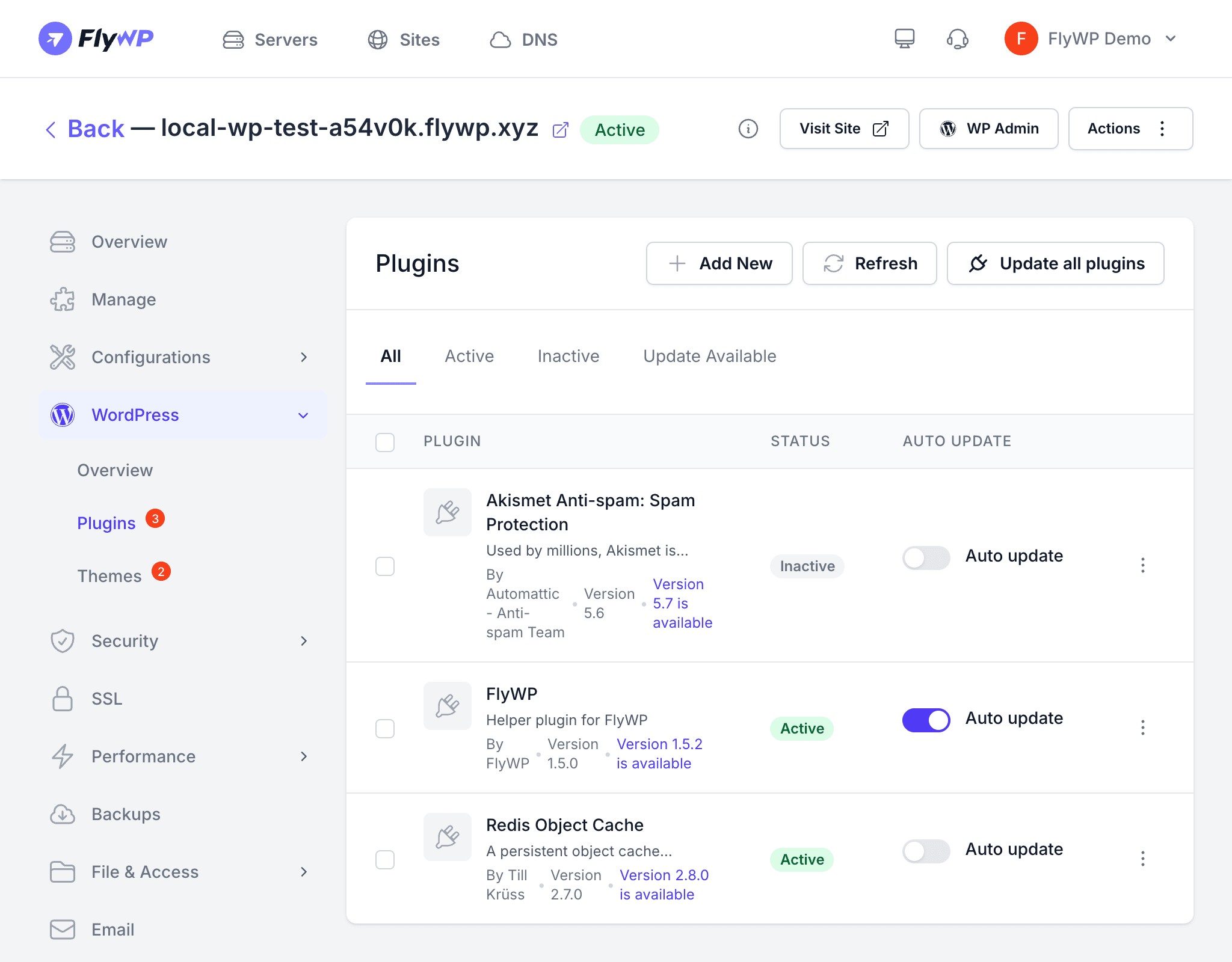
Security vulnerabilities move fast — a plugin flaw disclosed on Monday can be actively exploited by Tuesday. FlyWP gives you multiple layers of protection so you are not left scrambling: some updates happen automatically in the background, while others stay under your control so you decide when changes go live. Understanding each layer helps you make confident decisions about your sites.
Update Layers
| Layer | How It Is Updated |
|---|---|
| WordPress Core | Configurable via the WP Config editor — auto-updates can be enabled for minor or all releases |
| Plugins and Themes | Managed through the FlyWP dashboard with centralized bulk updates |
| PHP Version | Changed per site from site settings — you choose when to upgrade |
| Server OS Packages | FlyWP applies these during maintenance windows |
| Critical Security Patches | FlyWP applies these automatically for urgent vulnerabilities |
WordPress Core Updates
You can control WordPress core auto-update behavior through the WP Config editor (a built-in configuration file manager for your WordPress installation) on your site:
- Minor updates only (default) — WordPress automatically applies security and maintenance releases (e.g., 6.4.1 to 6.4.2)
- All updates — WordPress also auto-applies major releases (e.g., 6.4 to 6.5)
- Disabled — no automatic updates; you manage all updates manually
Plugin and Theme Updates
Plugins and themes are the most common source of WordPress security vulnerabilities, so staying on top of updates matters. FlyWP gives you a centralized view of available updates across all your sites so you never have to log into each WordPress dashboard individually. From the FlyWP dashboard, you can:
- See which plugins and themes have updates available
- Apply updates individually or in bulk across sites
- Review the changelog before committing to an update
The Vulnerability Scanner in the Security tab also alerts you when installed plugins or themes have known security issues (publicly disclosed flaws that attackers can exploit), so you know exactly which updates are urgent rather than just routine.
PHP Version Updates
PHP (the programming language that powers WordPress) receives regular updates that include security fixes. Older PHP versions eventually stop receiving patches, which leaves your site exposed. Changing the PHP version is a per-site setting:
- Navigate to your site’s Settings tab.
- Select the desired PHP version from the dropdown.
- Click Save.
FlyWP supports multiple PHP versions and makes switching straightforward. After a PHP version change, test your site to confirm all plugins and themes remain compatible.
Server-Level Updates
Beneath WordPress, your server runs an operating system and web server software that also need security patches. FlyWP handles this layer for you:
- FlyWP applies OS security patches (updates to the Linux operating system running your server) during scheduled maintenance windows
- FlyWP applies critical patches for urgent vulnerabilities as soon as they are available, without waiting for the next maintenance window
- FlyWP manages web server updates for Nginx and OpenLiteSpeed (the software that receives and serves web requests to visitors)