Amazon S3
Amazon S3
If you want your site backups stored somewhere reliable, affordable, and completely outside your server, Amazon S3 is one of the best choices available. S3 (Simple Storage Service) is Amazon’s cloud storage platform — it keeps your backup files safe even if your server is lost entirely. FlyWP connects directly to your S3 bucket, so backups upload automatically without any manual effort on your part.
Prerequisites
Before connecting Amazon S3, you need:
- An AWS account (create one at aws.amazon.com if you don’t have one)
- An S3 bucket — a named container in AWS where your backup files will be stored — created in your preferred region
- An IAM user (IAM stands for Identity and Access Management — it’s how AWS controls who can access what) with programmatic access and read/write permissions to your backup bucket
Required Credentials
FlyWP needs four pieces of information to connect to your S3 bucket:
| Field | Description |
|---|---|
| Access Key ID | The access key for your IAM user |
| Secret Access Key | The secret key paired with the access key |
| Bucket Name | The name of your S3 bucket (e.g., my-flywp-backups) |
| Region | The AWS region where your bucket lives (e.g., us-east-1) |
Setup Steps
Here is how to connect S3 to FlyWP from start to finish:
- Log in to your AWS Management Console at console.aws.amazon.com.
- Create an S3 bucket (or use an existing one) in a region geographically close to your server for faster uploads.
- Create an IAM user with the AmazonS3FullAccess policy, or use the custom scoped policy below for tighter security.
- Copy the Access Key ID and Secret Access Key — AWS only shows the secret key once, so save it somewhere safe.
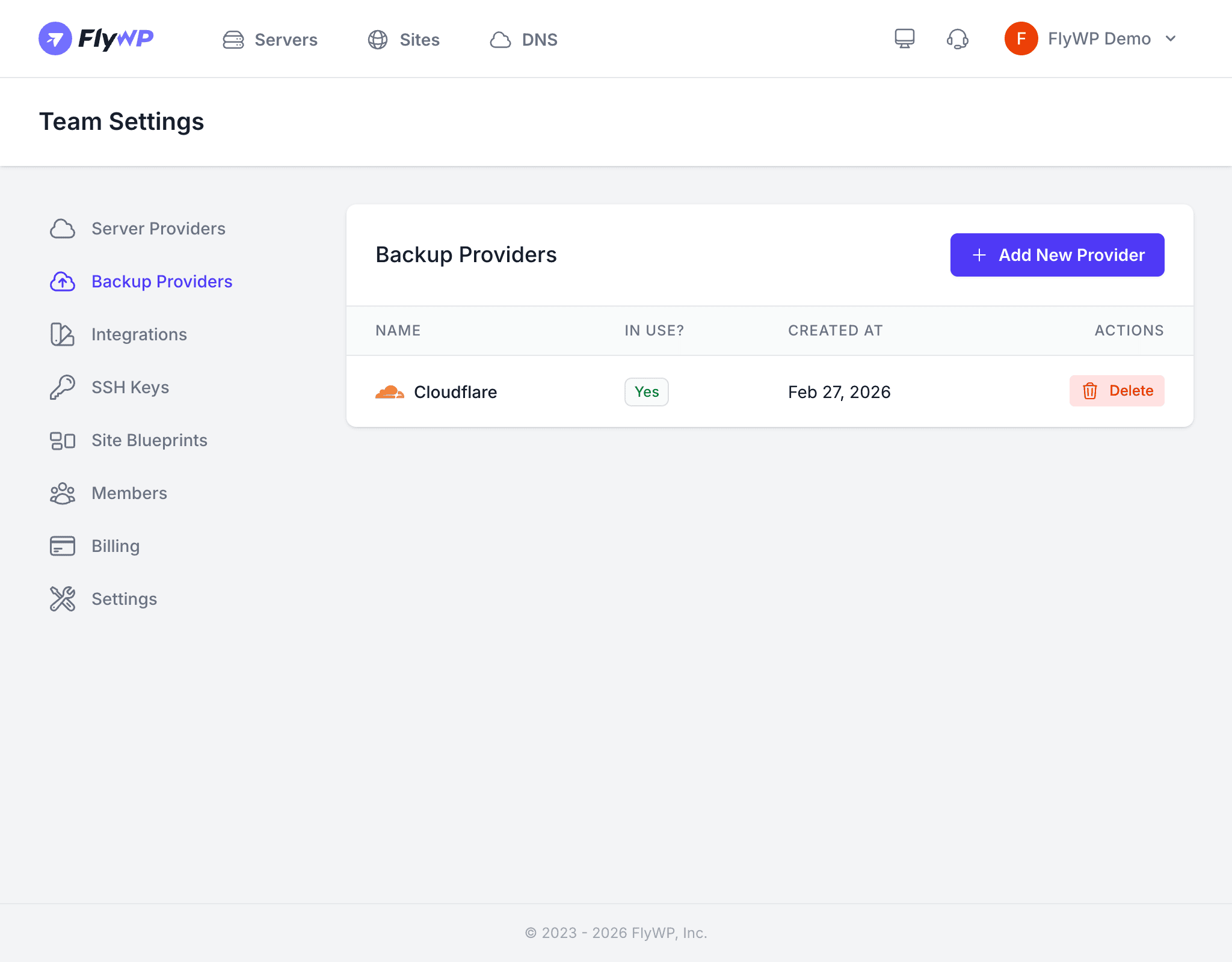
- In FlyWP, go to Team Settings > Backup Providers.
- Click Add Provider and select Amazon S3.
- Enter your credentials and click Save.
FlyWP installs the AWS CLI (command-line interface) on your server automatically, so it can transfer backup files directly to S3 without any extra setup from you.
IAM Policy (Recommended)
Instead of granting full S3 access, use a policy (a set of permission rules) scoped to your specific backup bucket. This limits the blast radius if your credentials are ever exposed:
{ "Version": "2012-10-17", "Statement": [ { "Effect": "Allow", "Action": "s3:*", "Resource": [ "arn:aws:s3:::my-flywp-backups", "arn:aws:s3:::my-flywp-backups/*" ] } ]}Replace my-flywp-backups with your actual bucket name.
Keep your AWS credentials secure. If you suspect they have been compromised, rotate them immediately in the AWS IAM console and update them in FlyWP.
Using the Provider
Once connected, select Amazon S3 as the storage provider when configuring backups for any site on your team. FlyWP uploads backups directly from your server to S3 — you can then restore from any saved backup point whenever you need it.