Maintenance Mode
Maintenance Mode
When you need to make major changes to your site — a redesign, a WordPress core upgrade, a database migration — the last thing you want is visitors stumbling onto a broken or half-finished page. Maintenance mode lets you take your site offline for visitors while you keep working behind the scenes, then bring it back with a single click when you are ready.
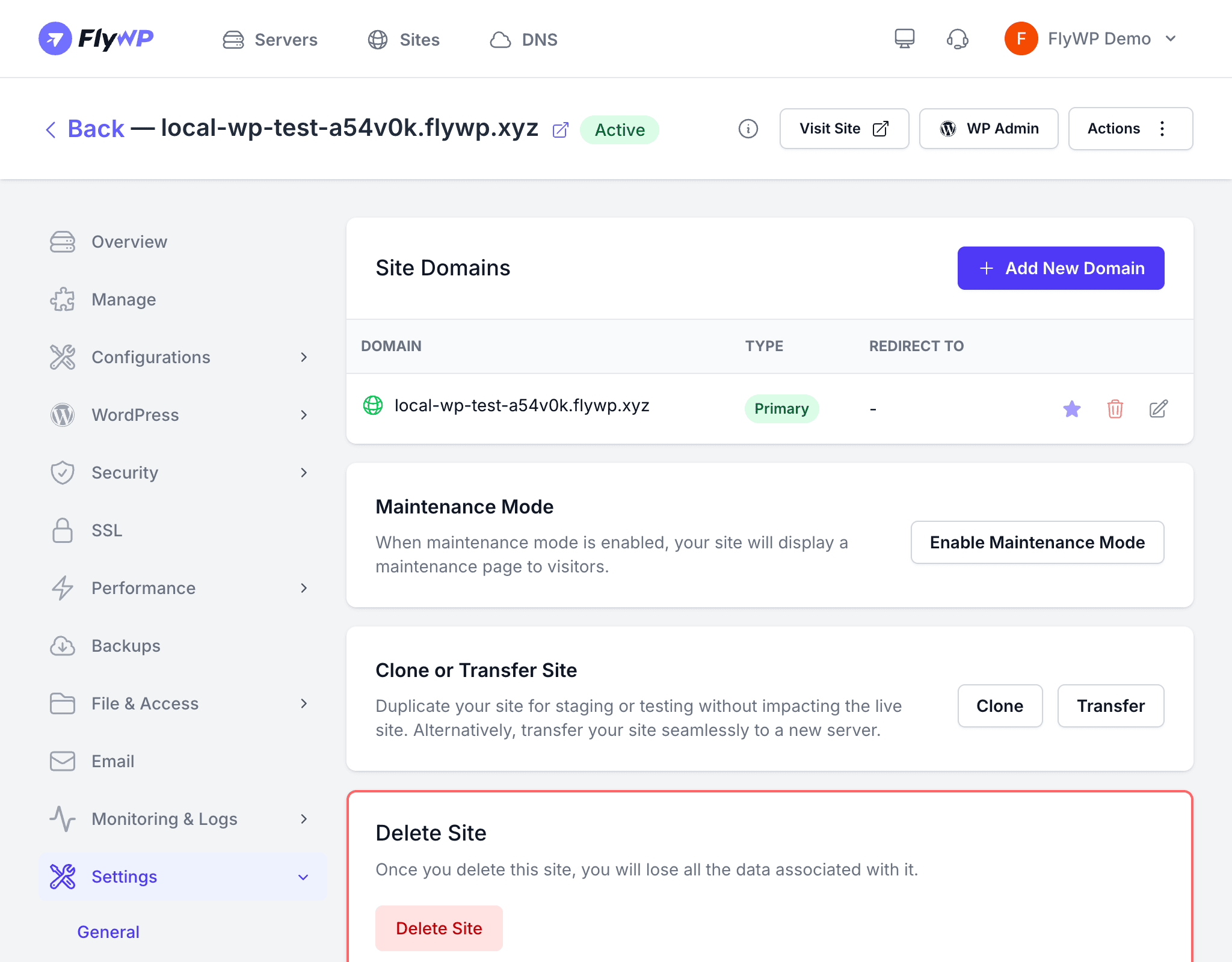
When Maintenance Mode is enabled, FlyWP changes your site’s status from Active to Maintenance and serves a default maintenance page to all visitors. You retain full access to the WordPress admin and can continue making changes — only public visitors see the maintenance screen.
How It Works
- You toggle maintenance mode on from the site’s Settings tab.
- FlyWP dispatches a background job that configures the web server to intercept incoming requests and return the maintenance page.
- Your site’s status badge updates to Maintenance in real time via WebSocket notifications (a technology that pushes live updates to your browser without needing a page refresh), so you can confirm the change immediately in the dashboard.
- When you are finished, toggle maintenance mode off. FlyWP dispatches a second job that restores normal traffic flow, and the status returns to Active.
Enabling Maintenance Mode
Navigate to the site’s detail page and click the Settings tab. From there:
- Find the Maintenance Mode toggle.
- Click the toggle. A confirmation dialog will appear asking you to confirm.
- Confirm the action. The site status changes to Maintenance.
Disabling Maintenance Mode
When your work is done, turning maintenance mode off is just as fast:
- Return to the site’s Settings tab.
- Click the Maintenance Mode toggle again.
- Confirm the action. The site status returns to Active and visitors can access your site normally.
What Visitors See
While maintenance mode is active, all public requests receive a maintenance page indicating that the site is temporarily unavailable. The web server serves this page directly, so it loads quickly regardless of the state of your WordPress installation.
When to Use Maintenance Mode
| Scenario | Recommended |
|---|---|
| Major WordPress core or plugin updates | Yes |
| Theme redesign or migration | Yes |
| Database schema changes | Yes |
| Minor content edits | No — visitors will not notice |
| Routine plugin updates | No — these are typically fast enough |
Do not leave maintenance mode enabled indefinitely. Search engines that repeatedly encounter a maintenance page may temporarily de-index your site.