One-Click Apps
One-Click Apps
Your WordPress server can do a lot more than host WordPress sites. One-Click Apps let you deploy popular self-hosted tools — analytics dashboards, password managers, automation platforms, and more — on the same server, without touching the command line or writing any configuration files. If you’ve ever wanted to run your own Zapier alternative or keep your files off Google Drive, this is how you do it in minutes.
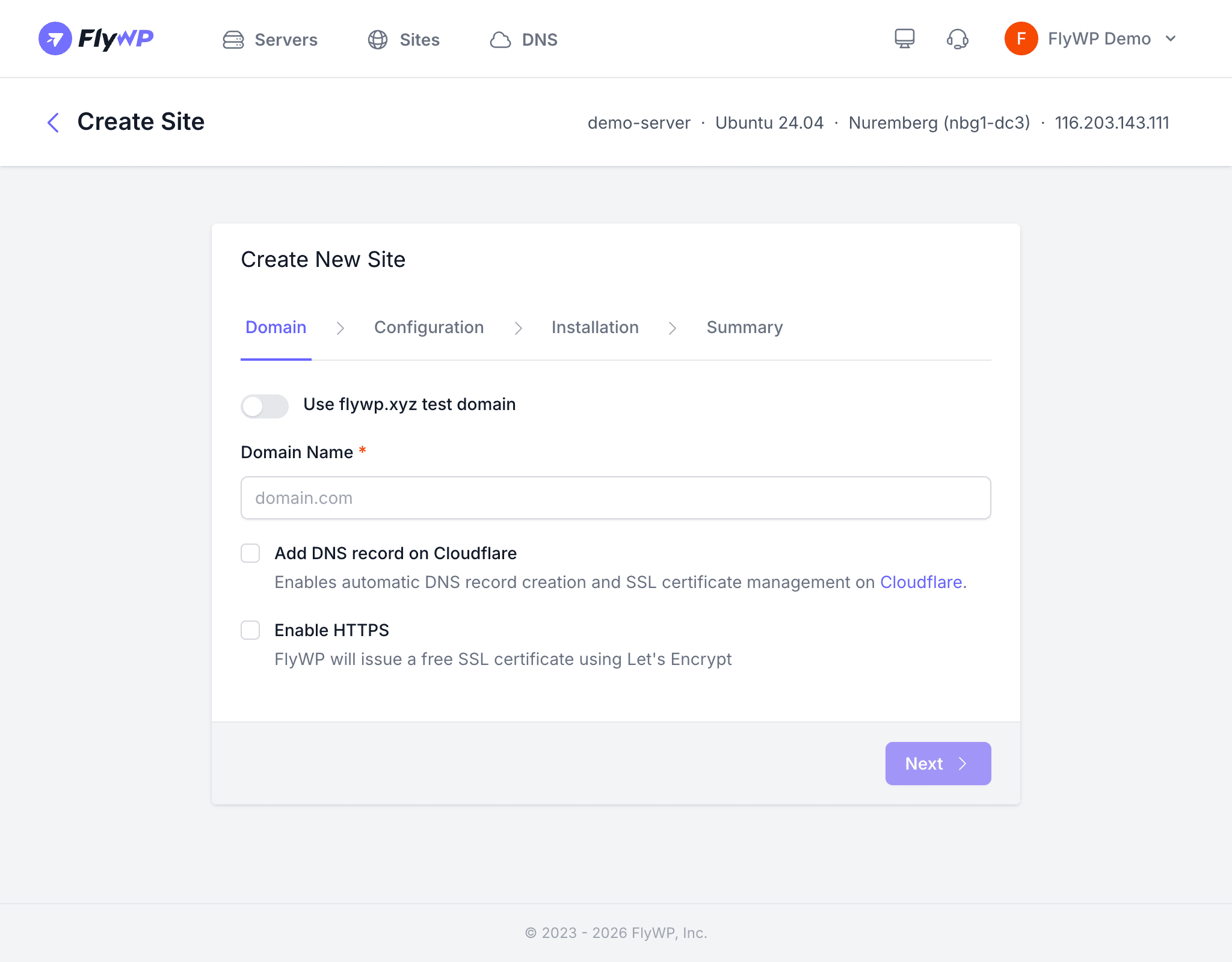
Each app runs in its own isolated Docker container (a lightweight, self-contained environment that keeps the app separate from everything else on your server) and FlyWP automatically handles SSL certificates (the encryption layer that gives you https://) and reverse proxy routing (directing web traffic to the right container). You pick the app and a domain — FlyWP handles the rest.
Available Apps
| App | Description |
|---|---|
| phpMyAdmin | Web-based MySQL database management tool |
| n8n | Workflow automation platform (open-source alternative to Zapier) |
| Nextcloud | Self-hosted file sync, sharing, and collaboration platform |
| Statamic | Flat-file CMS built on Laravel |
| Open WebUI | Self-hosted web interface for AI models (like a private ChatGPT) |
| Mautic | Open-source marketing automation platform |
| Vaultwarden | Lightweight Bitwarden-compatible password manager |
| WireGuard | VPN server (Virtual Private Network) with a web-based admin interface |
| Umami | Privacy-focused web analytics (Google Analytics alternative) |
How One-Click Apps Work
Behind the scenes, deploying a one-click app triggers a sequence of automated steps so you never have to configure anything manually.
- Creates a site entry with your chosen domain or subdomain
- Generates a Docker Compose configuration tailored to the app (Docker Compose is a tool that describes how a container should be built and run)
- Pulls the Docker image (a pre-packaged snapshot of the app) and starts the container
- Provisions an SSL certificate via Let’s Encrypt (a free certificate authority)
- Configures NGINX (the web server acting as a reverse proxy) to route traffic to the container
Each app has a dedicated configuration generator that ensures the correct image, ports, volumes, and environment variables are set — no manual tuning required.
Deploying a One-Click App
Deploying takes just a few steps from your server dashboard.
- Navigate to your server in the FlyWP dashboard.
- Click Create Site or go to the One-Click Apps section.
- Select the app you want to install.
- Enter a domain or subdomain for the app.
- Click Create.
FlyWP handles container setup, networking, SSL, and reverse proxy configuration automatically.
Environment Configuration
Some one-click apps let you customize their behavior through environment variables (key-value settings that control how an app runs). You can configure these directly from the dashboard.
| App | Environment Config |
|---|---|
| Vaultwarden | Supported |
| WireGuard | Supported |
| Umami | Supported |
Other apps use sensible defaults and do not require additional configuration.
SSL Certificates
FlyWP provisions SSL certificates automatically for every one-click app. Before you deploy, make sure your domain’s DNS records (the settings that point your domain name to a server’s IP address) are already pointing to the server — this is required for the certificate to be issued successfully.